Welcome to the Onshape forum! Ask questions and join in the discussions about everything Onshape.
First time visiting? Here are some places to start:- Looking for a certain topic? Check out the categories filter or use Search (upper right).
- Need support? Ask a question to our Community Support category.
- Please submit support tickets for bugs but you can request improvements in the Product Feedback category.
- Be respectful, on topic and if you see a problem, Flag it.
If you would like to contact our Community Manager personally, feel free to send a private message or an email.
Best way to create a drawing template

Hi everybody
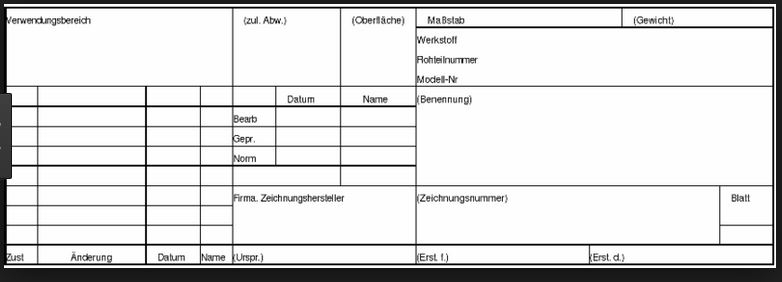
Tried hardly to create a Drawing template with DIN 6771-1 style title block but wasn’t successful. Can anybody recommend the best way to get there ore a recourse where such a template can be downloaded? Would be very helpfull. I Added an image of how it is suppose to look like.
Thanks a lot.
Best Answer
-
@wladimir_triller332 how was it not successful? Can you save it as .dwt? if so, upload to a doc (I call my drawing template). After that you can start a new drawing and go to "my documents" and will see your drawing template. If you have any notes you would like linked to properties you can do that, then from onshape export out the drawing as a .dwt file and import it back do the doc and the links will be part of the template (it's a bit odd but it works).
5
Answers
-
@wladimir_triller332 how was it not successful? Can you save it as .dwt? if so, upload to a doc (I call my drawing template). After that you can start a new drawing and go to "my documents" and will see your drawing template. If you have any notes you would like linked to properties you can do that, then from onshape export out the drawing as a .dwt file and import it back do the doc and the links will be part of the template (it's a bit odd but it works).
5 -
@wladimir_triller332 Here is the section of our help on custom templates that may be pertinent to you, as I suspect you may also be coming from using another CAD package (https://cad.onshape.com/help/#templates-custom.htm?Highlight=custom template):
Using traditional CAD drawings as templates in OnshapeCreate an Onshape drawing template..
In Onshape, create an empty drawing:
- At the template step, select Custom Template.
- Select Do not include the borders.
- Select Do not include the title block.
- Set size, standard, and other characteristics as needed.
- Click OK and close the open dialogs in the drawing.
- Import your exported traditional CAD drawing (in DWG/DXF format) into Onshape (through the
 menu > Import).
 - Open the empty drawing you created.
- Use Insert DWG/DXF
 tool to insert the file just uploaded.
 To tweak the fonts, select the text and change the font to an internally supported font of your choice.
- To add Revision Table or Block functions:
- Generate a drawing using the newly uploaded DWG/DXF.
- Place a table where needed (for example, the upper right corner).
- To include a company logo in the drawing template:
- Upload the logo through the Insert Image command.
- Insert the newly uploaded image, properly place and size it in the drawing.
- Insert drawing fields as necessary in the appropriate areas of your drawing:
- Add a note to the drawing.
- Select the Insert field button.
- Use the Move to command on the View’s context menu (right-click) to add elements to: Title block, Border frame, and Border zones.
Elements will be added to the corresponding layer: title block, border frame, or border zones.
- To add Revision Table or Block functions:
- Export the drawing as a DWT.
- Upload the new DWT into an Onshape document (company-owned is preferred).
- Test the drawing template before using.
1 -
@PeteYodisPeteYodis said:
Using traditional CAD drawings as templates in OnshapeCreate an Onshape drawing template..
In Onshape, create an empty drawing:
- At the template step, select Custom Template.
- Select Do not include the borders.
- Select Do not include the title block.
- Set size, standard, and other characteristics as needed.
- Click OK and close the open dialogs in the drawing.
- Import your exported traditional CAD drawing (in DWG/DXF format) into Onshape (through the menu > Import).
Ideally this could be done without a second CAD program. I would prefer to stay in just one, and that would be Onshape.0 -
@brian_brady These instructions would be for users that are migrating from another CAD package. There is no need to re-invent the wheel inside Onshape. This process is quick. It marries the look of a drawing from another CAD package with all the proper behaviors of an Onshape environment.
If you are starting purely from scratch, want to stay all within one Onshape environment, and you want some completely custom template; you could certainly use our powerful sketcher and sketch away, then export to DXF/DWG and use the method above. You wouldn't have to leave the Onshape environment at all.0 -
Doh. I hadn't thought of that. What about textual tags though?0
-
Hi Brian!
The full text of the help article Pete is referencing mentions how to add title blocks, borders, etc:
https://cad.onshape.com/help/#templates-custom.htm
(Basically it boils down to adding a note and attaching it to the appropriate layer with right click > move to)Jake Rosenfeld - Modeling Team0 -
@Jake_RosenfeldJake_Rosenfeld said:Hi Brian!
The full text of the help article Pete is referencing mentions how to add title blocks, borders, etc:
https://cad.onshape.com/help/#templates-custom.htm
(Basically it boils down to adding a note and attaching it to the appropriate layer with right click > move to)
I must be dense this morning, because I cannot find anything in the link you gave that describes adding text to a template using Onshape tools. Ideally I would like to completely remain in Onshape to perform all CAD work, including creating and saving custom templates without having to add text to the template everytime I make a new drawing. I think a video or other tutorial is in order.0 -
Hi Brian,
There was recently a webinar about drawings in general:
https://www.onshape.com/videos/custom-properties-drawings-and-drawing-templates-webinar-03-21-17
There is information about templates at 16:00 and in the summary at the end.
I'm not really sure of your workflow, but you can create a template with text in it in the following way:- Create a drawing in onshape that will serve as your template. This can be done in many ways. Some ways already mentioned in this thread were: importing a drawing from an external CAD system, or using the sketcher to make a DXF and then opening that DXF as a drawing. Some ways that weren't mentioned in this thread: opening a template that already exists in the system and editing it, or creating a blank drawing and using the 'line' tool to set up the template.
- Add text to your drawing as you normally would (using the 'note' tool).
- Attach these note to the appropriate layer of the drawing by right clicking and using 'move to'
- Export your drawing as a '.dwt' ( https://cad.onshape.com/help/Content/templates-custom.htm#Exportin )
- Reimport that saved '.dwt' into some Onshape document (The webinar recommends importing all your custom drawings templates into a document called 'drawings templates', but you can organize this any way you want).
Jake Rosenfeld - Modeling Team0 -
@Jake_Rosenfeld In step 1 you say "create a drawing in Onshape". Does this actually mean create a sketch in a Part Studio and export it or use the very limited tool set in a Drawing to create the template?0
-
Brian,
When I say "create a drawing in Onshape" I mean that you will need to have an Onshape Drawing tab with a Drawing that you want to turn into a template. You can accomplish this in many ways, but it seems like you would like to use the Onshape sketch tools. Here are some steps for that:- Make a sketch that you would like to turn into a Drawing
- Right click on the sketch in the feature tree and select "Export as DXF/DWG"
- Export the sketch (you will not need to change the default settings in this dialog)
- Click the "+" button in the bottom corner of the Part Studio
- Click "Import..."
- Find the file you just exported in your "Downloads" folder (or wherever your downloads go) and import it. This will add two tabs to your Document, a "blob" tab holding the file you just uploaded, and a Drawing tab containing the sketch. You can ignore both of these tabs.
- Click the "+" in the bottom left corner
- Click the "Create Drawing..." button
- Go to "Custom template"
- Decide what standards you would like to use and what you want your borders to look like
- Make sure you select "Do not include" on the "title block" section (I assume the whole point of what you want to do is create your own title bock?)
- Click "OK"
- Click the Insert DXF button in the top right corner of the drawing
- Select the sketch you exported/reimported earlier
- Edit/resize/etc until you are happy with how the Drawing template looks
- Add text and export to ".dwt" with the above directions
- Create an Onshape Drawing tab
- Tailor it to exactly how you would like it to look (this could include importing sketches/DXFs/DWGs or using the built-in drawings tools, or adding notes, etc)
- Export it as .dwt
- Import it back into Onshape.
Jake Rosenfeld - Modeling Team0 -
@Jake_Rosenfeld
I don't have a specific template look at this point. I was merely playing the devil's advocate. In reading this thread I was hearing "use another CAD program to make a custom title block for our CAD program because our program does not have robust enough drawing tools in Drawing mode to do the job." Maybe I was reading that into it myself. If I were a design department, I would question the need to buy a different CAD program to do what should be easily accomplished in the primary CAD program I am paying for.
I am pulling for Onshape to be the only CAD system for lots of people in the future. It just needs more polish to have all of the tools necessary, especially in Drawings.0 -
@ Pete
Hi Pete, thanks for the manual. It workt very fine. Thanks
0 -
Ugh, Drawings keeps reverting to really weird paper size, messed up title blocks, and screwy measurements. I think it's totally broken.
 0
0