Welcome to the Onshape forum! Ask questions and join in the discussions about everything Onshape.
First time visiting? Here are some places to start:
- Looking for a certain topic? Check out the categories filter or use Search (upper right).
- Need support? Ask a question to our Community Support category.
- Please submit support tickets for bugs but you can request improvements in the Product Feedback category.
- Be respectful, on topic and if you see a problem, Flag it.
If you would like to contact our Community Manager personally, feel free to send a private message or an email.
Custom Feature: Material & Grain definition + Grain Layout for sheet goods

TL;DR: FS kit to tag parts with material, finish and grain direction + a grain-oriented-layout feature, ready for a drawing callouts and CNC file prep.
Material and Grain definition - try it out and come back with suggestions.
I'm releasing it hoping people will fork it and build on it. I'll keep improving it and keep the document updated - hopefully this starts an interesting discussion.
I built it with an experimental MCP setup, exploring a problem that has people resorting to all sorts of workarounds and cheats to manage materials, finishes and grain direction for CNC file prep and drawings: a part doesn't carry enough data on what it's made of. Once it does, useful things open up downstream.
Huge props to whoever first made Auto Layout - it's been a major inspiration, and a very useful FS for the community for years. I've (AI mostly) built this from the ground up refraining from taking code from other FS's to test my AI setup, but obviously Auto Layout has been a major inspiration and a very useful FS to the community since forever.
Material & Grain - the definer
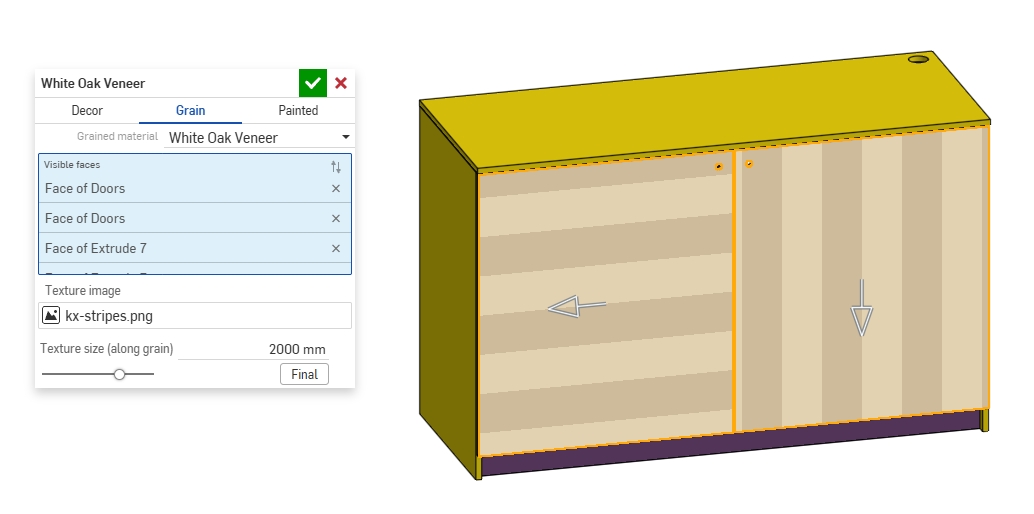
Pick a material, pick each part's visible (decor) face, and click the arrows on the face to turn the grain 90°. It then writes onto the part:
- An attribute - material, measured thickness, decor face, grain direction and decor-face area. This is what the layout reads.
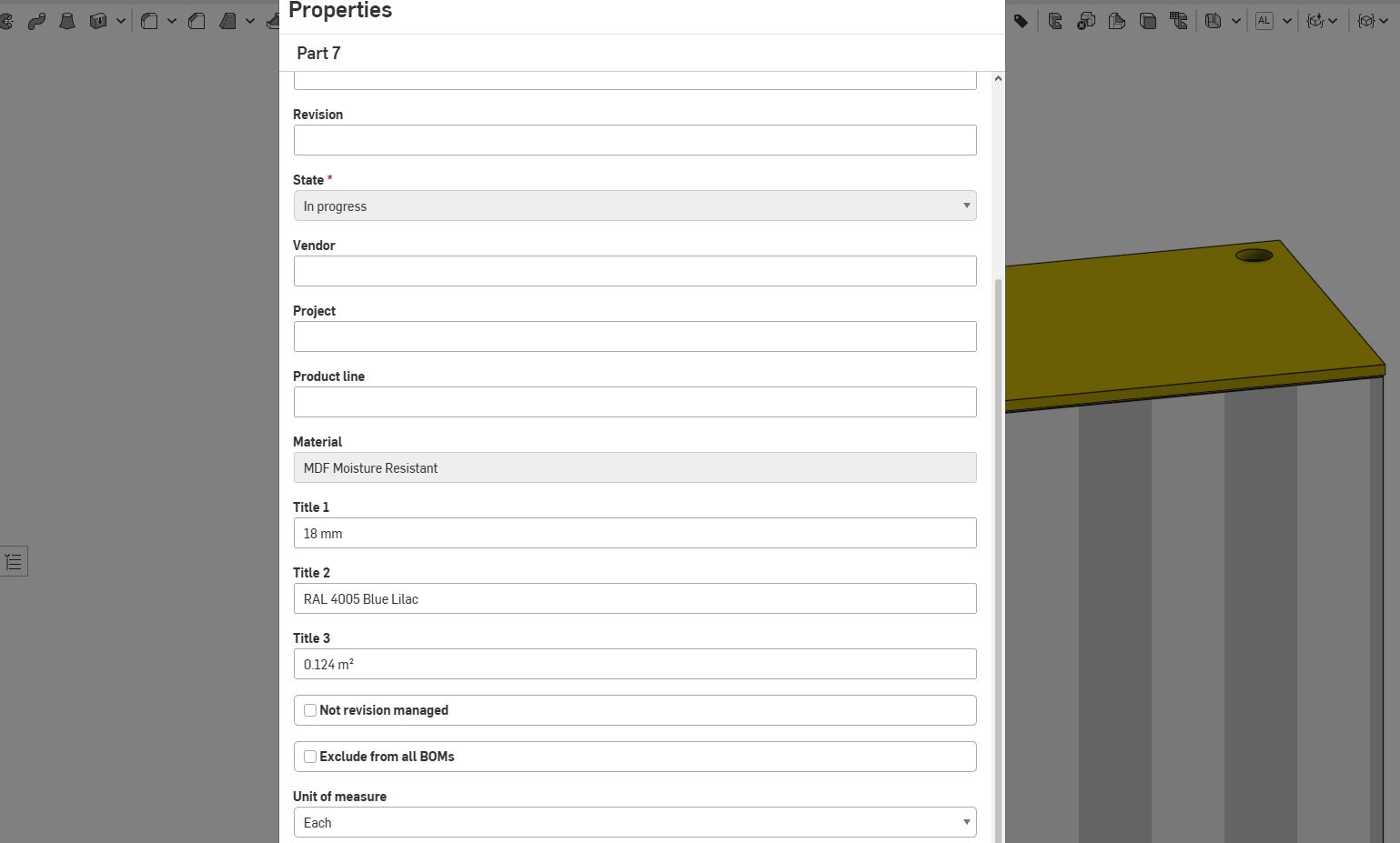
- Part properties - Title 1 = thickness, Title 2 = paint code, Title 3 = decor-face area - for drawings and BOMs.
- Appearance and material, so colors follow the material choice and mass properties come out right.
- A texture decal on the decor face, aligned to the grain. The image is a manual pick for now - I haven't found a way for FS to choose one per material automatically.
The grain direction sticks to the face and travels with the part through patterns and transforms, like a decal does. - 3 modes: Decor - pick from a list of products, typical for MFC; Grain - pick from a list of grains, select a texture image; Painted - pick a substrate material and define it's color either from a list of RAL tones or paste in a HEX code.
Grain Layout - the consumer
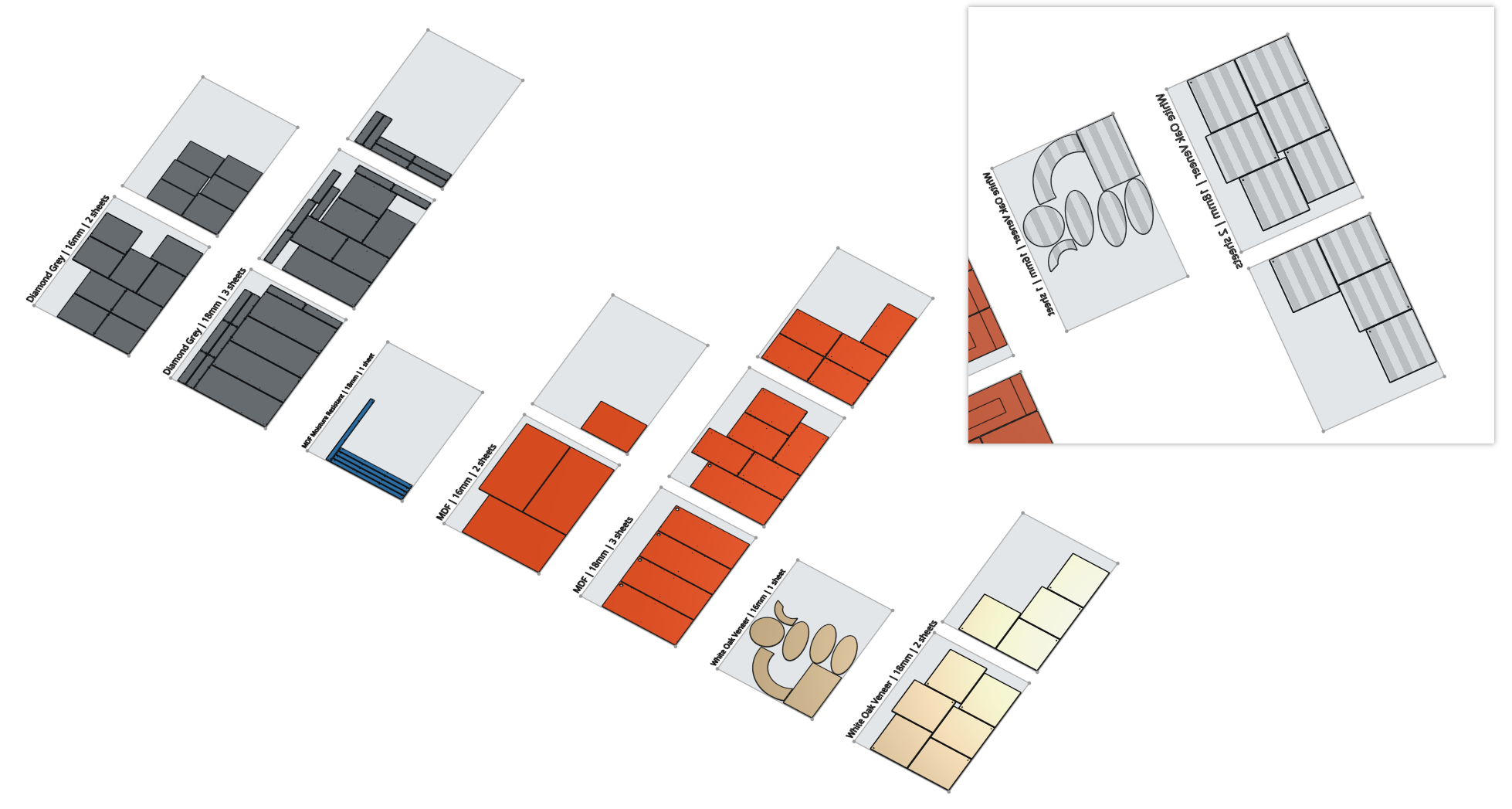
- No selection: one instance finds every tagged part in the Part Studio, groups them by material and exact thickness, and packs each group onto sheets (MaxRects best-short-side-fit on bounding rectangles).
- Grained materials stay locked to the sheet's grain axis; plain ones can also turn 90° for a tighter pack. The first sheet dimension is the grain axis.
- Parts land decor face down by default. Untick Decor face down to put the larger side down instead, or pick faces to force them down.
- Each sheet gets an outline, and each row a label with its material, thickness and sheet count. Funny enough - this is actually the heaviest part of the FS.
- Run layout! is off by default - laying out is the heavy part, and you'll likely open the dialog a few times while setting it up.
- Part validation is in the code but switched off in this build; it needs more work.
Drawings and DXF
A bottom view with Show hidden lines, exported to DXF, puts part outlines and through holes on the visible layer and blind holes on the hidden layer, along with the row labels. It's a bottom view, so mirror the DXF to get what the CNC sees - the labels come out mirrored, so that's hard to miss. The labels are one flat Composite part, because a drawing can't show a sketch made inside a feature. Sheet outlines show in the Part Studio only, so they stay out of the CNC file.
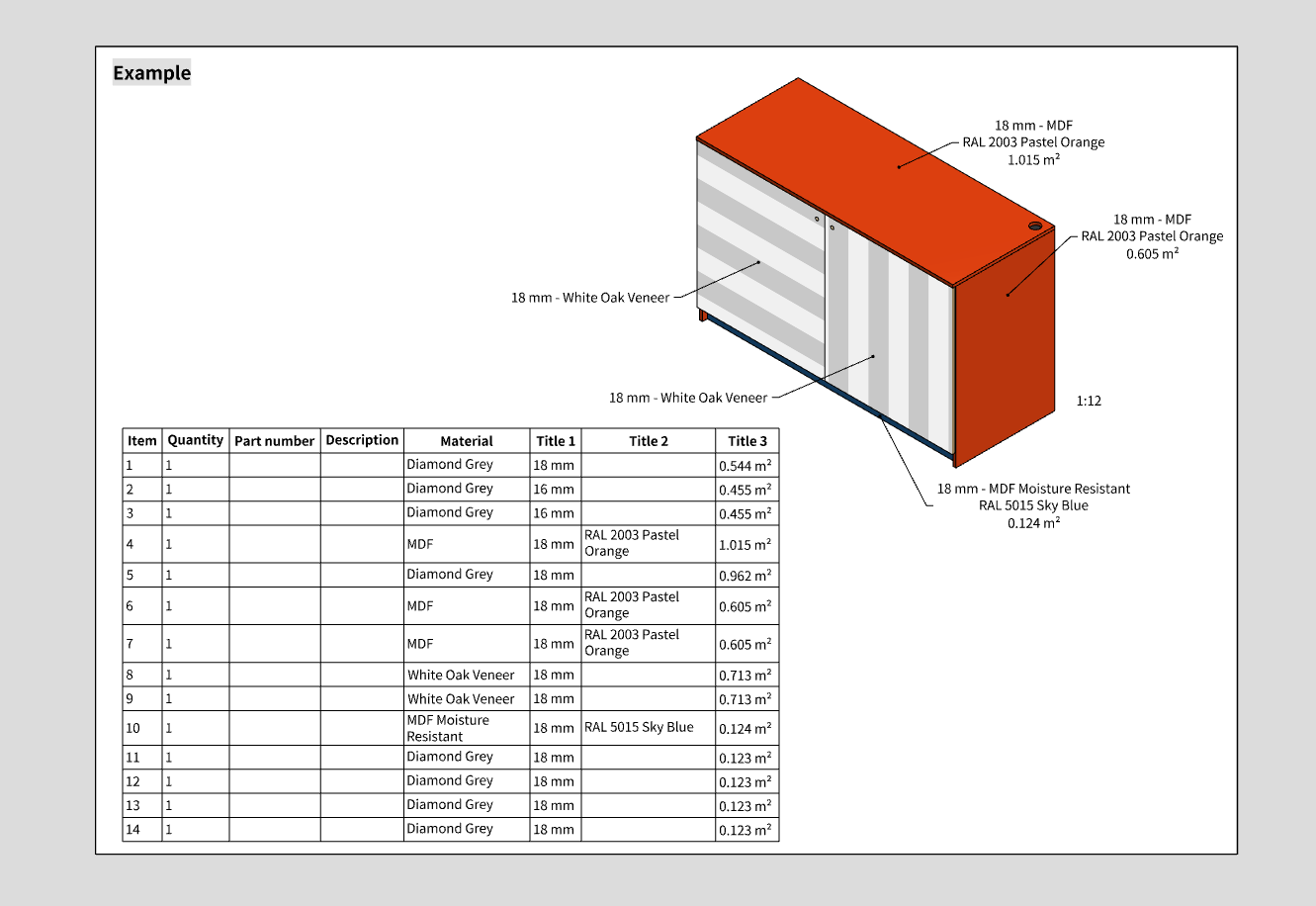
Callouts and BOM tables can pull thickness, paint code and decor area straight off the parts, so the model stays the source of truth for materials and finishes.
Limits
- It packs bounding rectangles, not silhouettes - a step up from Auto Layout, not a nesting optimizer. Good for quick material estimates.
- Parts go at 0° or 90° only. Easy addition in case of popular demand.
- The definer owns Titles 1–3 and the part color. A hand-edited value permanently overrides what it writes.Hand-edited part colors break the feature's ability to paint the parts. Reset all properties fixes that.
- Texture images are picked per feature, not stored in the library. Use images with the pattern running horizontally and larger than any part at real scale - one centered decal then covers the face without distortion.
Forking it
The materials and paint colors are lookup tables in their own tab. I've generated a starter set, but the idea is that you fork it and build your own library, since everyone's material preferences differ. Or I might expand the library if there's request for that…
Comments
-
Update 1.1: bigger library, finishes, custom grain angle
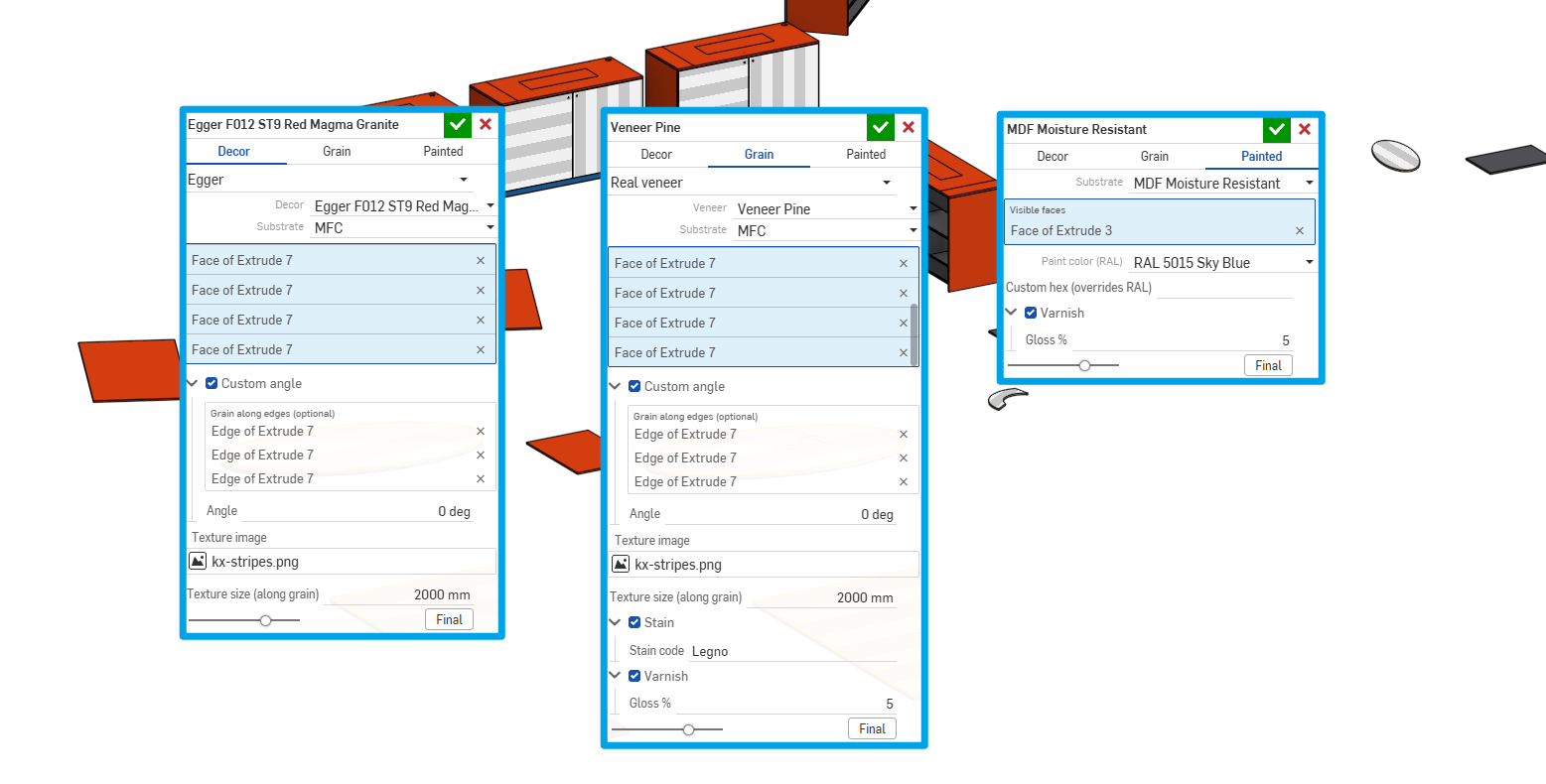
After some real life testing added some functions I suspected could be useful, but didn't want to bloat the UI at the getgo.
- Library ~9× bigger: Egger, Kronospan and Pfleiderer decors, 48 veneers, full RAL Classic. Pick a source, click on the dropdown menu and type to search.
- Decor + substrate: the decor sets the color, the substrate (MFC, MDF, HDF, plywood…) the density. Practice showed it's needed to separate the decor/veneer layer from the substrate.
- Finishes in Title 2: paint, stain, varnish + gloss %.
- Custom angle: grain along a chosen edge, plus an angle offset.
- Textures on Decor too (stone, concrete, metal). Still no way to automatically set the texture image. ;(
- Dark colors are lightened so parts stay readable.
1 -
Seems like an extremely useful feature for your workflow. Nice work!
1
