How to Manage One-off Computed Part Properties

Hello,
This question has probably been asked before but I'm having trouble finding it.
I'm looking for a general best-practice way to handle a part that has a custom property (or something similar) that applies to it and nothing else. I'll use the part I'm currently working on as an example, but I think this same situation will appear again for future parts.
The part I'm dealing with is a configurable compression spring, and the property I'd like to add is the amount of compressive force that spring is exerting, which can be computed using various information in the spring's part studio. It has several configuration variables that remain constant for a given spring (wire diameter, free length, spring rate, number of coils, etc.), and one configuration variable that I regularly adjust in assemblies (deflection/deflected length).
Calculating the force is easy, but having that force show up in a conveniently-viewed spot while I'm adjusting the spring compression in an assembly (by editing the configuration) is where I'm having trouble.
My first thought was a custom property for spring force, but this property would be a one-off, only useful for this specific part, and would clutter the properties of every other part with a useless extra field. I'm very new to FeatureScript, but I experimented with part attributes and even tried renaming a mate connector to show the force in an assembly that way, and it appears that either I don't have the required knowledge or FeatureScript has some limitations when it comes to naming things.
Custom properties seem like the way to go here, but I'd like to avoid adding any complexity to the properties lists of other parts. I think that could quickly get out of hand if I start adding these custom computed properties to more parts. Is there a way to do this such that there's no effect on other part studios? Are there approaches other than custom properties that might be able to accomplish something similar?
Thanks!
Best Answers
-
Two thoughts:
First, you could calculate the property, and write it to a generic (preexisting) property such as description, or even make a catch all property like MISC that you write those 1 off properties to. For 1-offs, rather than creating a compute property (which executes for every part that inherits that property, see categories in option 2), you can create a custom feature (written in featurescript) that WRITES to that specific property. Lots of examples of this in public features, and definitely easy to achieve with the FeatureScript MCP from Onshape Labs (do it)! Essentially, have AI write the custom feature that does these calculations, generate custom tables (great way to view things in part studios) and ultimately write the value to the property. Then when the configuration changes, the custom feature recalculates, and it shows you that property. So it doesn't matter if its "Description" or "Misc" or "Title 1". No need to clutter.
Second option (that can still be done in tandem with the first) is to isolate this property to a specific part Category. In Onshape, properties are inherited by specific Categories, so if you assign a property to all Parts, it clutters everywhere. If you made a "Spring" subcategory of Part (in Company settings), then you could create a "Spring Force" property that is ONLY inherited by the "Spring" category, thus only computing for parts that get assigned to that Category. Just beware of cluttering with too many categories, or that list can get long.
Hope both of those directions give you some ideas, happy to share additional links/resources if it'd be helpful once you choose your strategy!
0 -
No need to write any custom features or computed part properties 😃
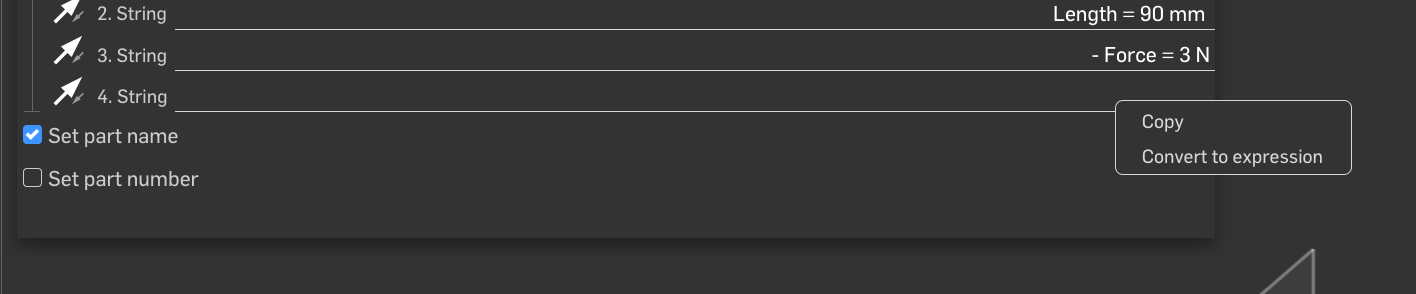
Example here, using configuration variable, simple (for showing the principles) math in variables, and a few variables tricks to fill data into @EvanReese's Part Name FeatureScript. A key is to right click on the entry field and 'Convert to expression' to make it driven by variables:
You can learn more about the variables tricks in Evan's Youtube series on expressions part 1 of 6 here.
All of this can obviously also be done in a single custom feature or computed property as @Kevin_Cowles mentioned 😊2 -
I've done this exact thing, but calculating the spring rate of a spring that's been cut to length from stock. I think appending it to the name is a fine way to go. Don't forget to set the compression configuration input to "Exclude from properties" so it shows up right in your BoM.
And since people are talking up the Part Name feature I'll go ahead and shout out the fact that the code there was and edit of an original Part Number feature by @NeilCooke, which I expanded on to fit some needs I had (using expressions and rounding them, more segments etc) but the bones of it were already there. Hats off to Neil.
2



Answers
-
Two thoughts:
First, you could calculate the property, and write it to a generic (preexisting) property such as description, or even make a catch all property like MISC that you write those 1 off properties to. For 1-offs, rather than creating a compute property (which executes for every part that inherits that property, see categories in option 2), you can create a custom feature (written in featurescript) that WRITES to that specific property. Lots of examples of this in public features, and definitely easy to achieve with the FeatureScript MCP from Onshape Labs (do it)! Essentially, have AI write the custom feature that does these calculations, generate custom tables (great way to view things in part studios) and ultimately write the value to the property. Then when the configuration changes, the custom feature recalculates, and it shows you that property. So it doesn't matter if its "Description" or "Misc" or "Title 1". No need to clutter.
Second option (that can still be done in tandem with the first) is to isolate this property to a specific part Category. In Onshape, properties are inherited by specific Categories, so if you assign a property to all Parts, it clutters everywhere. If you made a "Spring" subcategory of Part (in Company settings), then you could create a "Spring Force" property that is ONLY inherited by the "Spring" category, thus only computing for parts that get assigned to that Category. Just beware of cluttering with too many categories, or that list can get long.
Hope both of those directions give you some ideas, happy to share additional links/resources if it'd be helpful once you choose your strategy!
0 -
No need to write any custom features or computed part properties 😃
Example here, using configuration variable, simple (for showing the principles) math in variables, and a few variables tricks to fill data into @EvanReese's Part Name FeatureScript. A key is to right click on the entry field and 'Convert to expression' to make it driven by variables:
You can learn more about the variables tricks in Evan's Youtube series on expressions part 1 of 6 here.
All of this can obviously also be done in a single custom feature or computed property as @Kevin_Cowles mentioned 😊2 -
Ooh, great simplified solution! That would work quite nicely for these 1-offs @wille_j
I use Part Name CONSTANTLY, great feature
0 -
I've done this exact thing, but calculating the spring rate of a spring that's been cut to length from stock. I think appending it to the name is a fine way to go. Don't forget to set the compression configuration input to "Exclude from properties" so it shows up right in your BoM.
And since people are talking up the Part Name feature I'll go ahead and shout out the fact that the code there was and edit of an original Part Number feature by @NeilCooke, which I expanded on to fit some needs I had (using expressions and rounding them, more segments etc) but the bones of it were already there. Hats off to Neil.
2 -
There are a couple other useful features I have used to manipulate properties:
Property/Attribute offers a lot of flexibility:
https://cad.onshape.com/documents/861d68af1cee67efb9e4843d/v/fcb2681cd18c06c5cf70095e/e/30f1b225bf4ab0be37fc09b2Variable to string is especially helpful with formatting:
2 -
These are excellent answers, thank you all! Interesting to see there are several ways to do this. Name append sounds best for my use case, but I'll keep the other options in mind for the future.
1