How do I move an object?

Answers
-
0
-
How would I get the translate dialog box in sketch mode? Or how do I move or copy single entities in x,y,z specific dimensions in sketch mode?0
-
@david_gall,Kindly use transform feature to move an object.
 Transform
Transform adjusts a part's location and orientation in 3D space with the option to copy the part in place.
 Steps
Steps
- Click
 .
.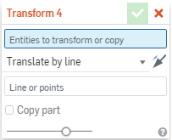
- Select the method of moving the part (transform type):
- Translate by line - Select an entity such as a part edge
- Translate by distance - Specify a value and select an entity to indicate direction
- Translate by XYZ - Specify axis values to move along or optionally, use the drag manipulator that appears to position the part along axis
- Transform by mate connectors - Specify two mate connectors by which to reorient the placement of the part.
- Rotate - Move the part about an axis specified by selecting an entity
- Copy in place - Make a copy of the part at the same location; this creates a separate and independent part enabling you to:
- Make changes to one part and use both to create different bodies during a later operation.
- Make a copy of a part prior to a series of operations enabling you to reference the original state for ancillary operations.
- Create multiple copies of a part in order to create multiple variants.
If you need to create multiple copies of a part at once, use the Pattern feature with a distance of 0 (zero).
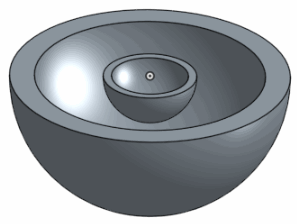
- Scale uniformly - Scale a part by a specific factor and select a point to scale about; optionally copy the part
- Click
 .
.
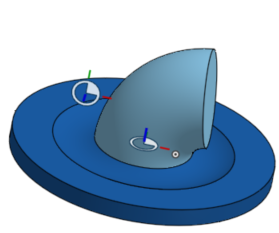
Transform by mate connectors
Before transform by mate connectors
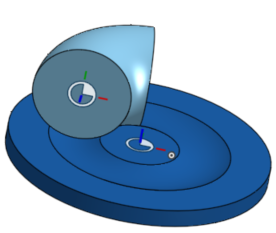
After transform by mate connectors
 Rotate
Before rotate
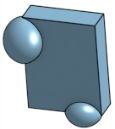

After rotate
 Copy in place
Before copy in place

After copy in place
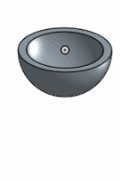
 Scale uniformly
Before scale uniformly
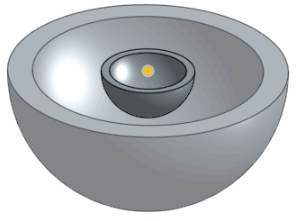
After scale uniformly
0 - Click
-
keith_waggoner , Kindly refer below thread as suggested by michael3424
https://forum.onshape.com/discussion/4021/how-do-i-move-an-object#latest
0 -
0


 https://www.youtube.com/watch?v=r_q5uQD4l5w