Welcome to the Onshape forum! Ask questions and join in the discussions about everything Onshape.
First time visiting? Here are some places to start:- Looking for a certain topic? Check out the categories filter or use Search (upper right).
- Need support? Ask a question to our Community Support category.
- Please submit support tickets for bugs but you can request improvements in the Product Feedback category.
- Be respectful, on topic and if you see a problem, Flag it.
If you would like to contact our Community Manager personally, feel free to send a private message or an email.
Aligning Sketches

Hi, I have done a lot of research on this, found many different answers and can't help but think i'm missing something blindingly obvious.
I want to duplicate a sketch so that I can loft between them and alter the second sketch as needed. However, when I copy and paste or 'use' the first sketch , the resulting sketch does not align with the first. Which is fine. But, I can't find work out a simple way to align the 2 sketches, which seems such a blindingly simple operation, yet when I use the following, I run into issues:
- Highlight all and move manually - it doesn't highlight the centre points of curves, and so when I move the sketch, it gets skewed etc.
- If I use transform, then it doesn't allow me to snap to anything on the original sketch.
- I can't make it coincident, since I am presented with an error along the lines of "Cannot make more than 2 line types coincident".
I'm sure i'm missing something obvious, but am going around in loops & slightly mad.
Answers
-
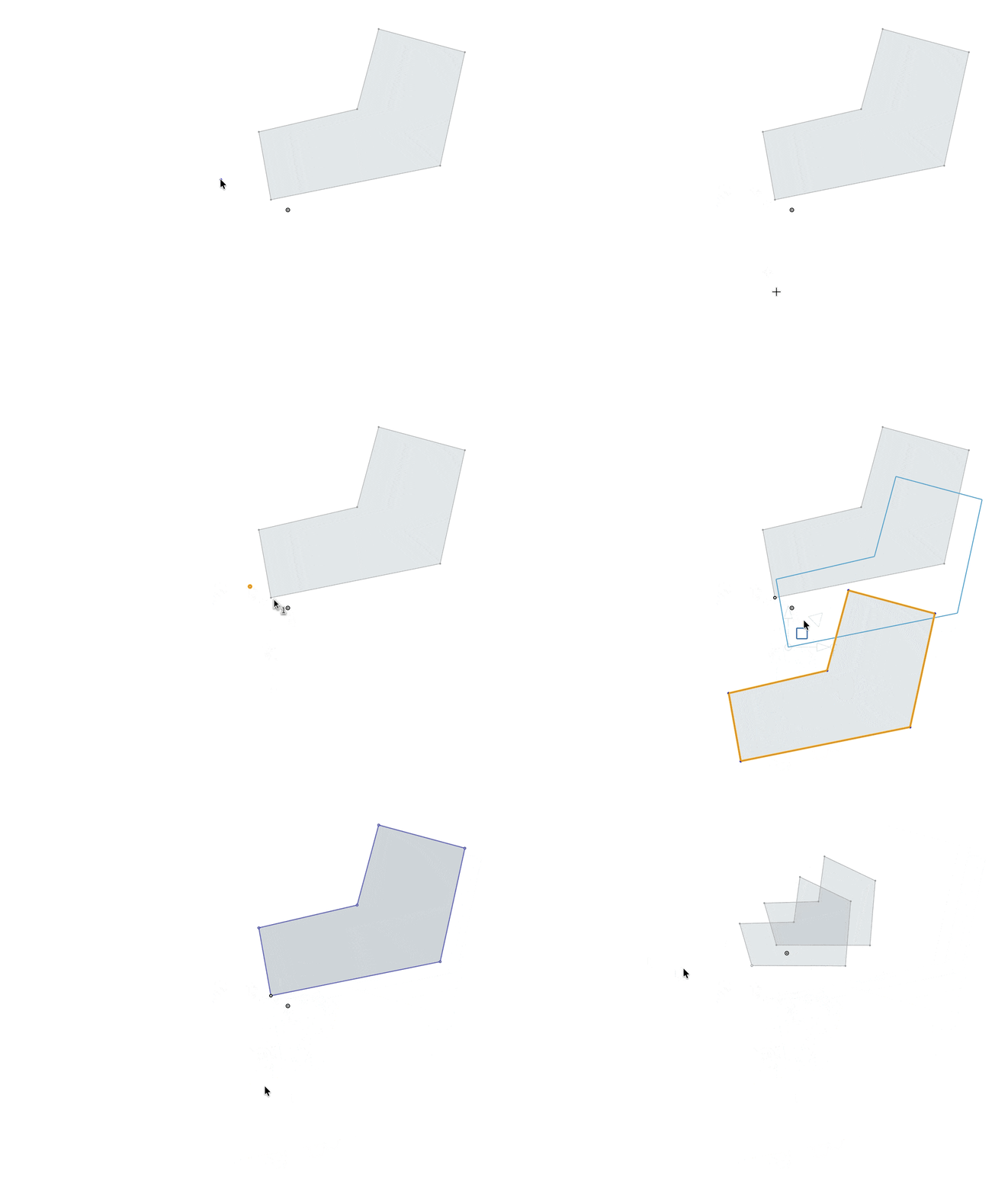
Transform will snap. The key is moving the reference point of the transform manipulator to something that makes sense for your needs.
Here I copied the entities from a sketch (Cmd-C), and then on another sketch plane, added a point, made it coincident with the first sketch, and then pasted in the copied sketch. I moved the sketch until it snapped to the added point.
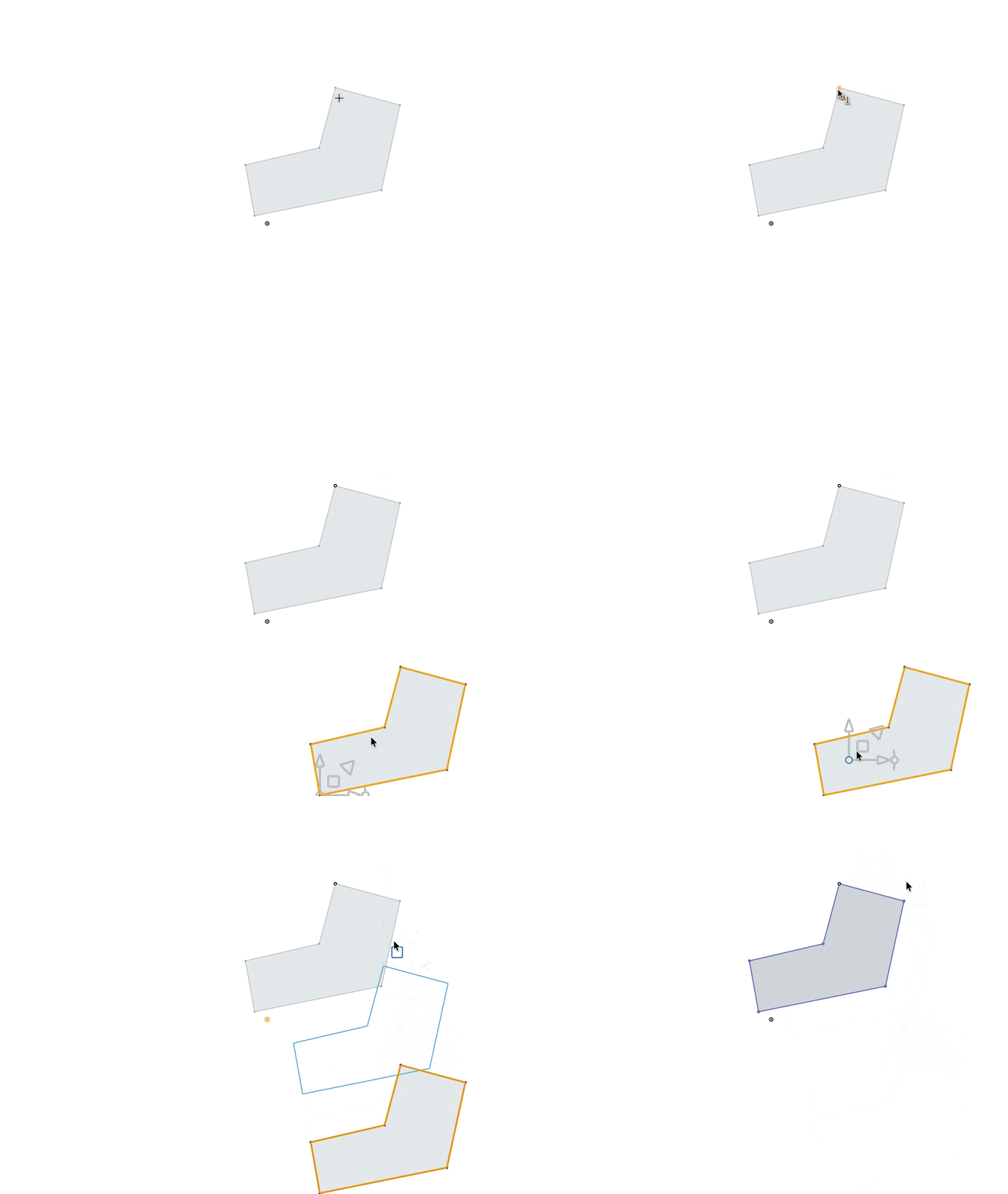
If the default insertion/manipulation point is not the reference you want, you can drag the manipulator by the circle until it snaps to the point you want.
Simon Gatrall | Product Development, Engineering, Design, Onshape | Ex- IDEO, PCH, Unagi, Carbon | LinkedIn
0