Welcome to the Onshape forum! Ask questions and join in the discussions about everything Onshape.
First time visiting? Here are some places to start:
- Looking for a certain topic? Check out the categories filter or use Search (upper right).
- Need support? Ask a question to our Community Support category.
- Please submit support tickets for bugs but you can request improvements in the Product Feedback category.
- Be respectful, on topic and if you see a problem, Flag it.
If you would like to contact our Community Manager personally, feel free to send a private message or an email.
Having trouble getting two parts to become one due to compound angles

First, the document: https://cad.onshape.com/documents/f790c4df8cc85d2b9b7c3dec/w/88b9d6ea8cf4e90bee3c2489/e/e747193ea9e06b13514b1209
I'm making a part that snaps onto an angled rod with a tray attached to it.
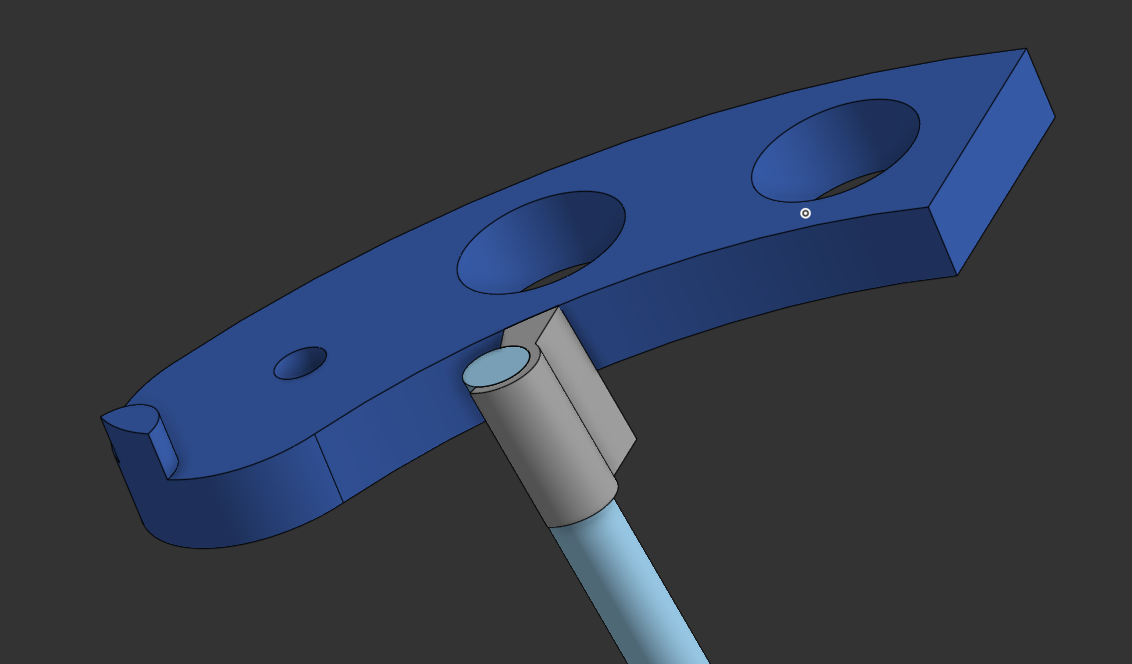
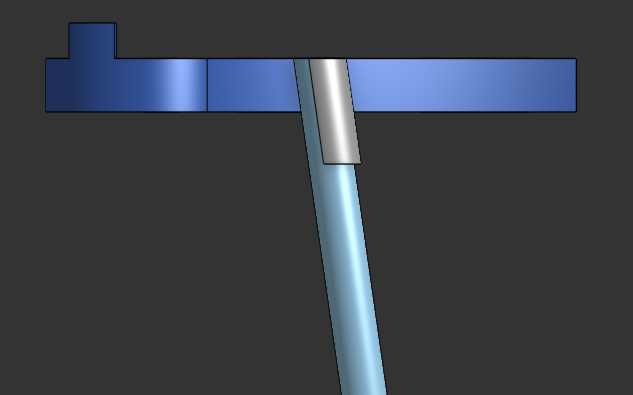
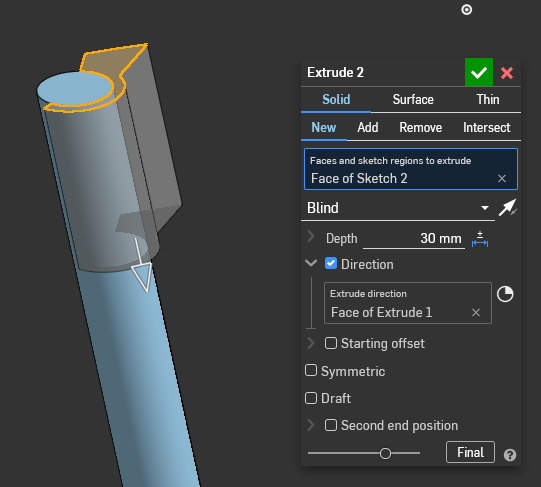
I made the part with a sketch in the top plane, then extruded down using the rod as the direction.
And then I made the tray on the same plane and also extruded it down.
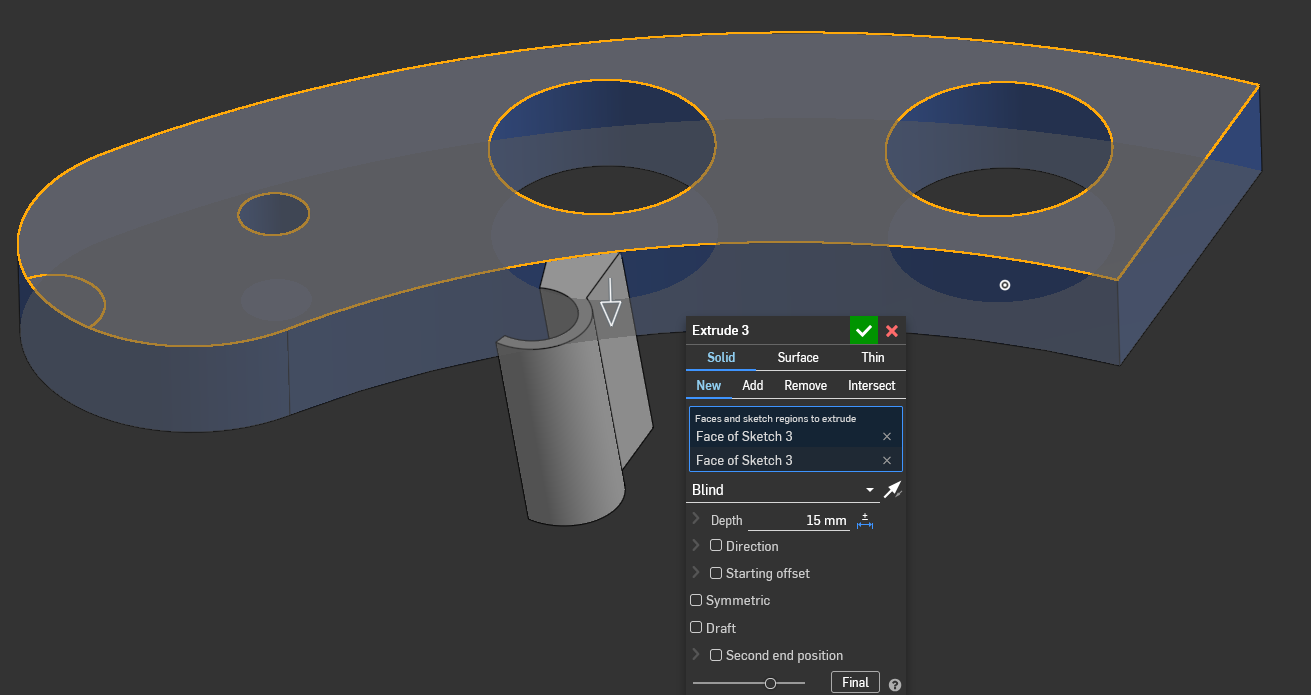
But when I tried to merge them, turns out they don't intersect. Because the clip extrusion is angled, the bottom pulls away from the face of the tray, which is more clear if I extrude the tray to the same depth as the clip and look at it from the bottom:
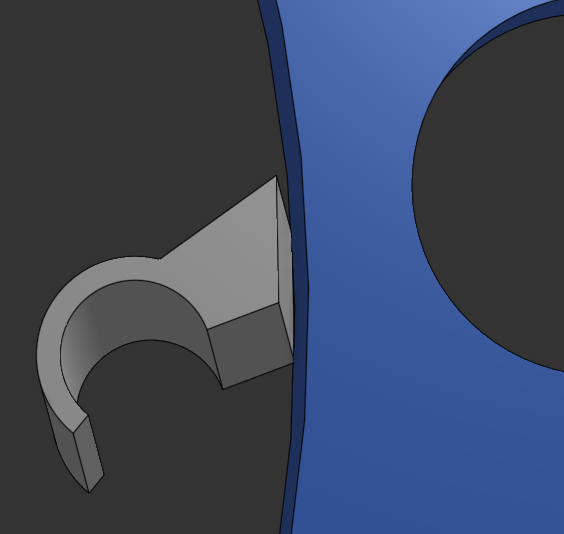
So I can fudge it by making the clip longer so it extends inside the tray, but it's not a great solution and there must be a better way to get those faces to meet.
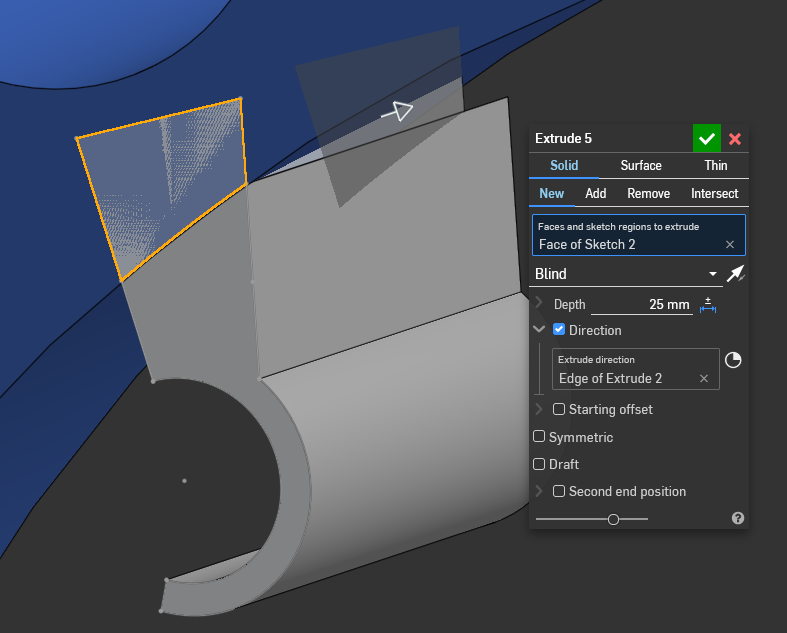
Is there a tool or a way to look at this that I'm missing here?
Answers
-
Hey Joe. Try extruding the face of part 2 using Up to face as the end type and the face of part 4 as the face to extrude to. - Scotty
0 -
Thanks for the suggestion, Scotty. Today I learned that you can extrude existing faces!
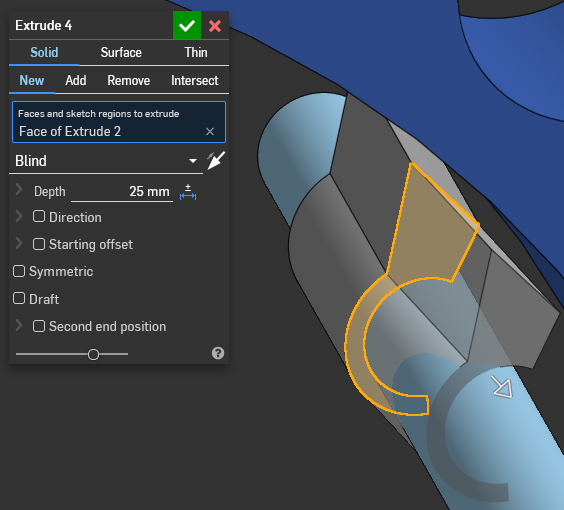
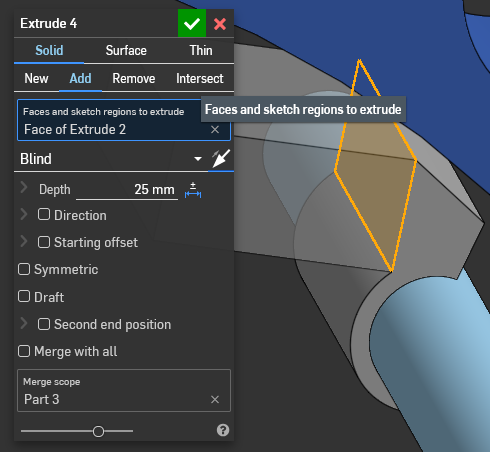
Sadly though, I can't select the faces that I want to extrude. Maybe because they touch at the top edge?
I can select these two faces, but I can't select the one that faces the dark blue part. Nor can I select the face on the side of the blue part that faces the gray one.
 0
-
It does seem like Move Boundary would do exactly what I want, but I can't select any surfaces. I've tried two different sketches and none of my surfaces or edges are selectable.
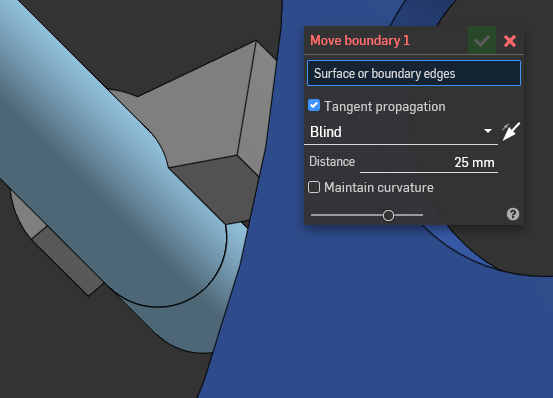 0
-
Hey Joe. The reason that face can't be selected is because it is not planar (flat). Back in Sketch 2, the element that created that face is a curve. Changing that to a line allows the face to be selected.
The method I used to get parts 3 & 4 to mate nicely was to change the curve to a line and use Move Face to have part 4 extend into part 3. I then created a sketch on the top surface of part 3 and used the Use tool to capture the edge of part 3. The resulting sketch element was used to create a surface that was then used to Split part 4. A bit of a complicated approach. Perhaps someone can chime in with a simpler way. - Scotty
0 -
How about using Replace Face on the grey face and replacing it with the blue face?
0

