Welcome to the Onshape forum! Ask questions and join in the discussions about everything Onshape.
First time visiting? Here are some places to start:- Looking for a certain topic? Check out the categories filter or use Search (upper right).
- Need support? Ask a question to our Community Support category.
- Please submit support tickets for bugs but you can request improvements in the Product Feedback category.
- Be respectful, on topic and if you see a problem, Flag it.
If you would like to contact our Community Manager personally, feel free to send a private message or an email.
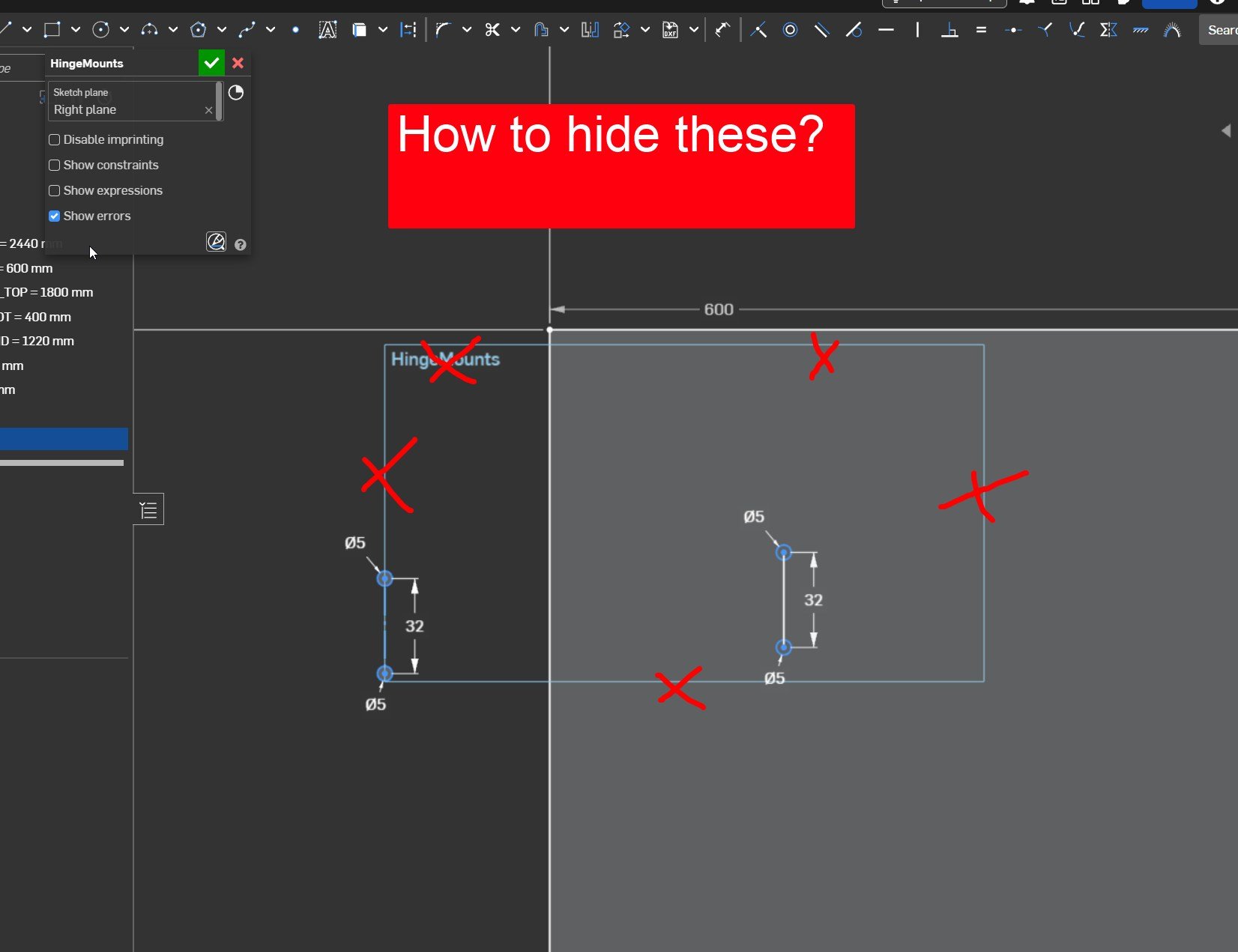
Answered: Hide sketch name and bounding box
 troy_ostrander
Member Posts: 71 ✭✭
troy_ostrander
Member Posts: 71 ✭✭
0
Comments
I think this has been asked before, and I'm not sure you can.
what is it called?
May I kindly ask why one would want to hide these, even if one could?
Cheapest way to hide that name would probably be to name the sketch like " " that is: All blanks.
But then: Why use sketch planes at all, when you could also use a mate connector. Mate connectors can be hidden.
Hi @martin_kopplow, I'm coming from Fusion and I'm not used to the extra visual clutter. But I can see it's very useful so I think it's just a matter of getting used to it. But good idea about the Mate connector, I like that idea. Tell me more…. so you can use a mate connector as a sketch plane?
@eric_pesty put together some videos on Mate Connectors. Since this was created, explicit MCs have more flexibility about "ownership". At the time, MCs had to be connected to parts. Now they can be independent or owned by sketches or curves.
@EvanReese also has a really good one that should be required watching for all new Onshape users:
Simon Gatrall | Product Development, Engineering, Design, Onshape | Ex- IDEO, PCH, Unagi, Carbon | LinkedIn
Hi Troy, yes indeed, you can do that. I believe Eric and Evan have already supplied you with massive input on the case? ;0) These little Mate Connectors may initially look bit awkward for new users, but can in fact be used in many ways, once one figured out. If you have further questions, just ask.
Thanks @S1mon The videos were super helpful. Evan Reese's opened a whole new way to think about setting up my designs.