Welcome to the Onshape forum! Ask questions and join in the discussions about everything Onshape.
First time visiting? Here are some places to start:- Looking for a certain topic? Check out the categories filter or use Search (upper right).
- Need support? Ask a question to our Community Support category.
- Please submit support tickets for bugs but you can request improvements in the Product Feedback category.
- Be respectful, on topic and if you see a problem, Flag it.
If you would like to contact our Community Manager personally, feel free to send a private message or an email.
BOXed-In, Branch-Out?
 brandon_nichols678
Member Posts: 9 ✭
brandon_nichols678
Member Posts: 9 ✭
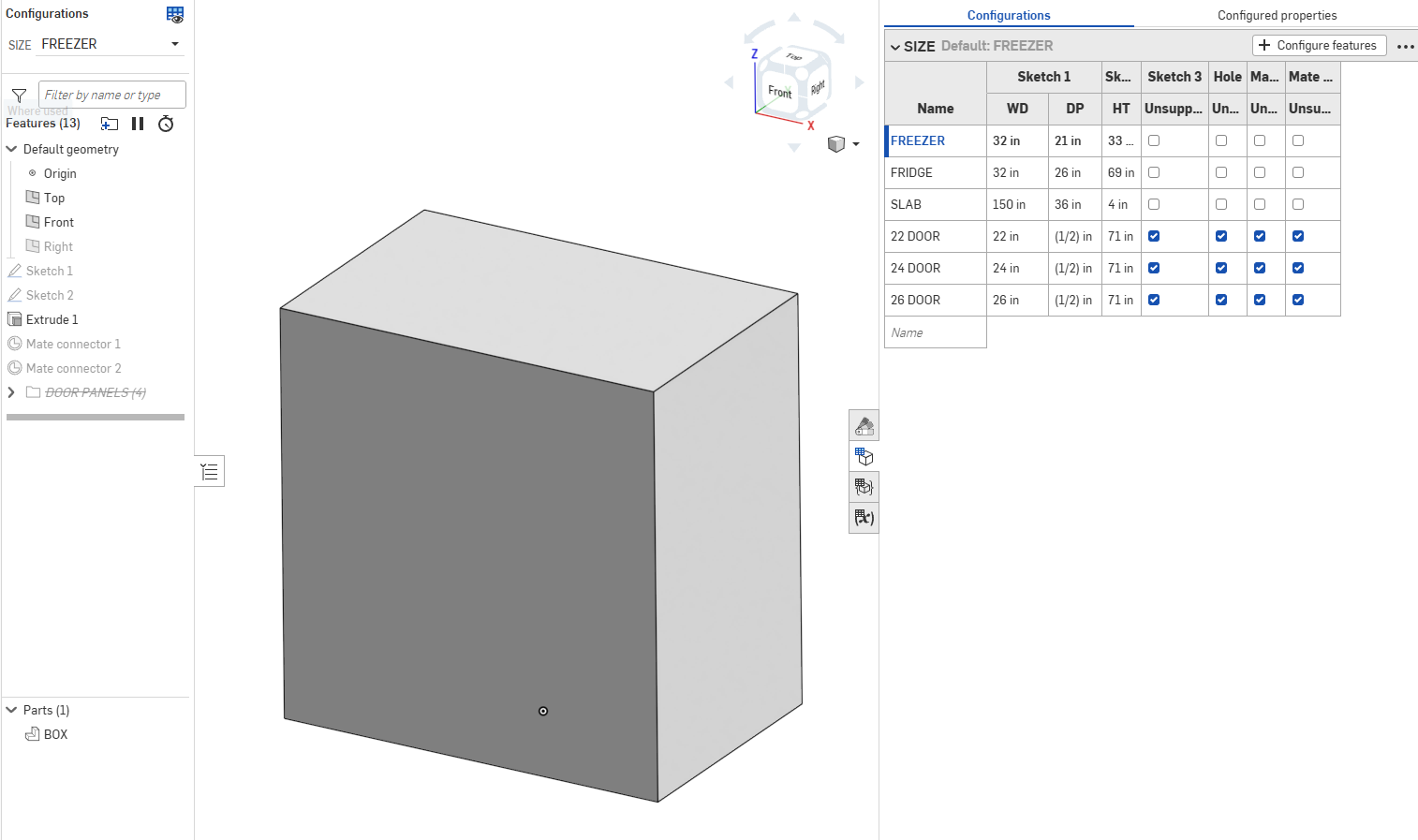
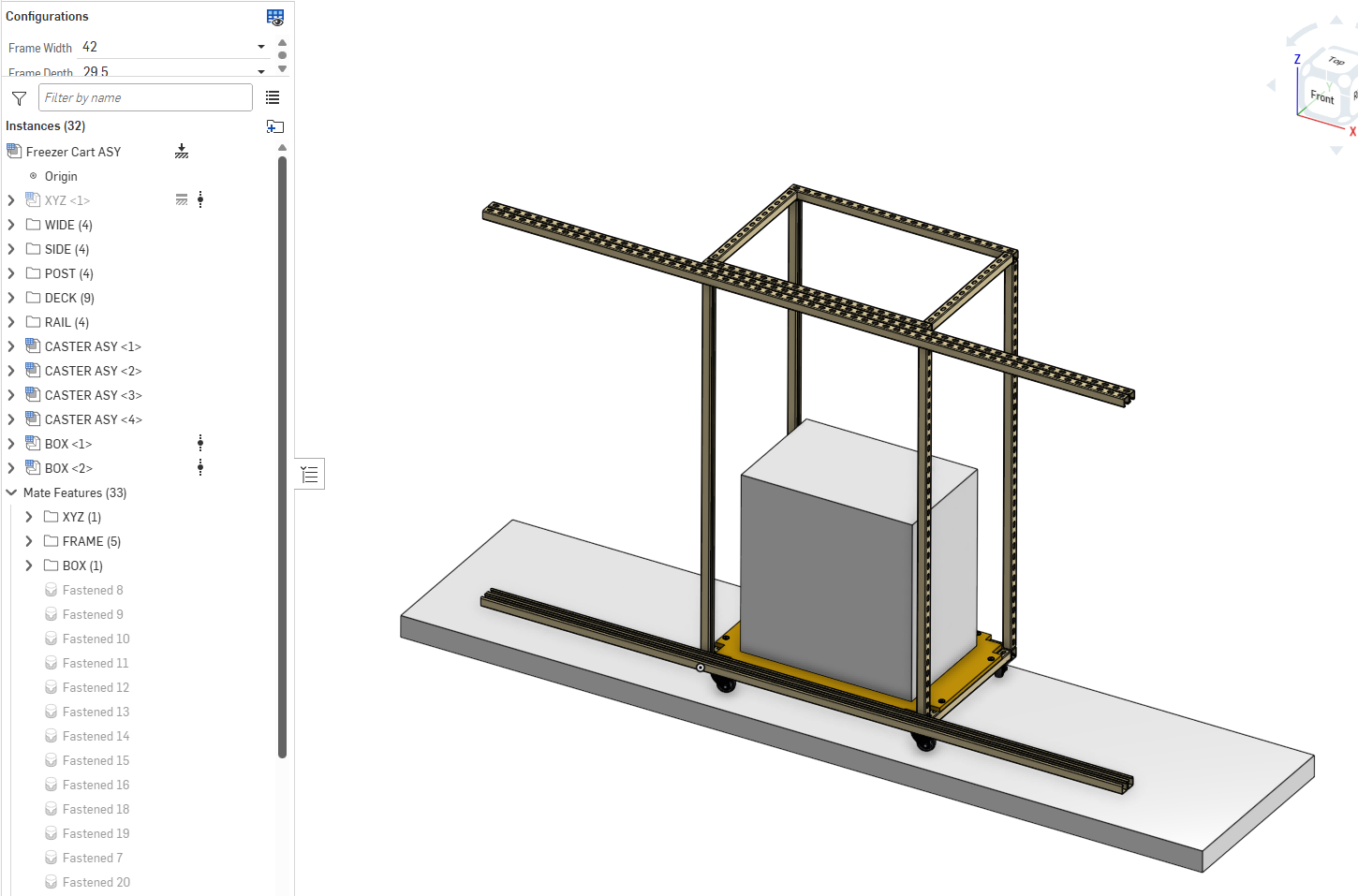
Configured unrelated cubes as parts in design, figuring I'd just rename instances a la SW.
But renaming configured instances does not appear to be possible in OnShape, true?
Problem is all instances show up in feature tree as BOX — is there any simple way out of this?
Or a more complex approach, perhaps like branching BOX Configs Part Studio to say PANEL, SLAB & APPLIANCE Part Studios?
What, if anything, can be done to differentiate w/o breaking (and thus needing to re-define) existing mates?
Thanks in advance!
0
Comments
Go to the "configured properties" (top right when looking at the configuration tables) and add "name".
Or bring up the BOM view from the assembly level and rename things there, it will create entries in the configured properties (as long as it's a workspace reference).
Like this:
Thanks, for the help! Yep 'Name' property editable from assembly BOM if grayed-out in Part Studio properties, is also avail as column on Part Studio Configured Properties tab.
Don't forget to milepost a version!
But ONE LITTLE QUIRK still remains.
The Name column in:
PART STUDIO CONFIGURATIONS…
…doesn't match the Name column in
PART STUDIO CONFIGURED PROPERTIES
(instead matches the SIZE column)
Can live with this for now, but that'll be a problem going forward!
In my experience, configured properties are a pain and not set up well since they can't be configured with the normal configurations.
 Property / Attribute
Here is what I use instead so that properties can be configured and controlled just like all other features:
.
Learn more about the Gospel of Christ ( Here )
CADSharp - We make custom features and integrated Onshape apps! Learn How to FeatureScript Here 🔴
@brandon_nichols678 , the "name" column in the configuration is the name of the configuration itself. The "name" column is the configured properties is the name of the part. The difference becomes more obvious when you have more than one configuration input (something that doesn't exist in SW), not sure if you've used that yet… The configured properties will have a column for each configuration input on the left so that each line in the configured properties describes one combination of configuration inputs.
I second @MichaelPascoe 's comment to use the property/attribute FS (and configured text variables) to build the names. The "variable to string" FS is also helpful for this:
https://cad.onshape.com/documents/19dacc01596e7c326bbfb137/v/c0b9911b5033a220bcbe87e5/e/16035d1ed4a973a81c4d8bc0?jumpToIndex=2430
I would also highly recommend using the "part color" FS as it is easier to manage than through configured properties:
https://cad.onshape.com/documents/d997b0ffc30f659113b10c00/v/4d2f56ee7f2ec4a55451f198/e/b6db0c9545b9a2df1d7ea546
One last thing to be aware if you go this way is that you will need to "rest all" (in the properties) for the property/attribute and color FS to take effect if you have manually set part names and appearances.
Also, here's an example of how the "properties/attributes" work:
https://cad.onshape.com/documents/58f2610c478ca1442039d662/w/6ba940bb35fad900a1706a69/e/e9d92746487d2fd62c442c0f?configuration=List_6mGOW332UwfBGS%3DLong%3BList_aWVRaJmbiUkuYg%3DDefault&renderMode=0&tangentEdgeStyle=1&rightPanel=configPanel&uiState=698e1be4a86aa5845e48c121
I added a configured " part color feature" as well after recording:
Thanks Michael, I see that FeatureScripts are on my learning curve!
To be clear, you don't need to "know" anything to use FeatureScripts (other to know where to find the ones you need, which is a whole topic by itself)!
Just open the document containing the FS (eg the links provided above) and click the "+ Custom features" button at the top and click on the FS to add to your toolbar, then it's just like any other "regular" feature.