Constraints and An Unwanted Entity I Can't Remove

I'm new and constraints are hard for me to grasp. Been looking for some good tutorials on them. Didn't find anything that helped as much as I needed but enough to get me going.
I sort of understand the constraint manager. I think I am getting close on this drawing. I have a spot with a round blue or orange spot depending on if it selected.
Here is a screen shot of that area zoomed in
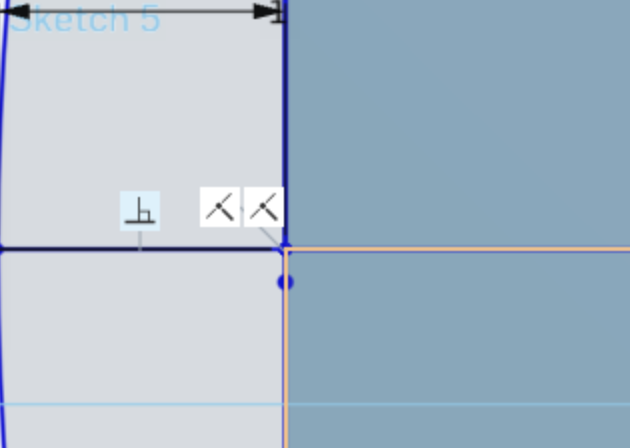
Not sure that the round mark is called either. But want to get rid of the lower one in this image.
I keep getting constraint errors. I saw some places were missing a constraint and some others seemed like they had too many. I've been going round and round and figure that might account for the extras. The place where the horizontal line meets the circle on the left of the drawing seems like it should have a coincident constraint, but when I select that constraint and those two lines I can see the blue mark, but don't see the symbol for the constraint.
I'm thinking that one or both of these might be the cause of my constraint error.
Besides this specific issue, any suggestions on some good tutorial, exercises for learning how to use and interpret the constraint manager would be welcome. I am sort of learning as I keep going round and round, but sometimes it is easy to also not realize just what it was I did to make things work.
Here is a link to my drawing: https://cad.onshape.com/documents/a06b46449d9fa6b40a57c41c/w/67f538bdb1ea807b41266ace/e/320b8e5e649e1e003b6b9ec5?renderMode=0&uiState=69db2e1de73650ebde1160c2
Best Answer
-
Those round things are points or vertexes/vertices. I'd suggest going through the sketches training material:
Your sketch had a lot of hidden extra entities that didn't do anything. I've fixed the model here:https://cad.onshape.com/documents/95d0ba6616d93f7880ccf8b3/w/1a551cae9ad0100ed621df1c/e/null
Please take a careful look at it. I've also created 2 ways to make your sketch perpendicular to the diagonal, because I have a feeling that might be what you actually want.
0
Answers
-
0
-
Those round things are points or vertexes/vertices. I'd suggest going through the sketches training material:
Your sketch had a lot of hidden extra entities that didn't do anything. I've fixed the model here:https://cad.onshape.com/documents/95d0ba6616d93f7880ccf8b3/w/1a551cae9ad0100ed621df1c/e/null
Please take a careful look at it. I've also created 2 ways to make your sketch perpendicular to the diagonal, because I have a feeling that might be what you actually want.
0 -
Thanks
I see you added a mate connecter. I was planning on using mate connectors, but thought I should add them after I got the shape I wanted to sweep drawn first.I also see you added an offset plane. Was thing about adding that as well, primarily to have the plane the different sketches are on present so I could name them something meaningful to keep me from getting confused.
In drawing the lines I used the center rectangle tool. I had been trying to use one corner rectangle or two. I thought about the center rectangle method, but didn’t use it because it would extend to areas I didn’t want it. I suppose that goes back to pencil drawing where I’d have to erase it. That’s not really an issue with this.
Here is the shape I was after. It will be the same shape, but a little bit different dimensions on the other side. There is a taper in the rounded part. The rectangular groove will be the same size, but will be at different depths because of the tapering round parts.
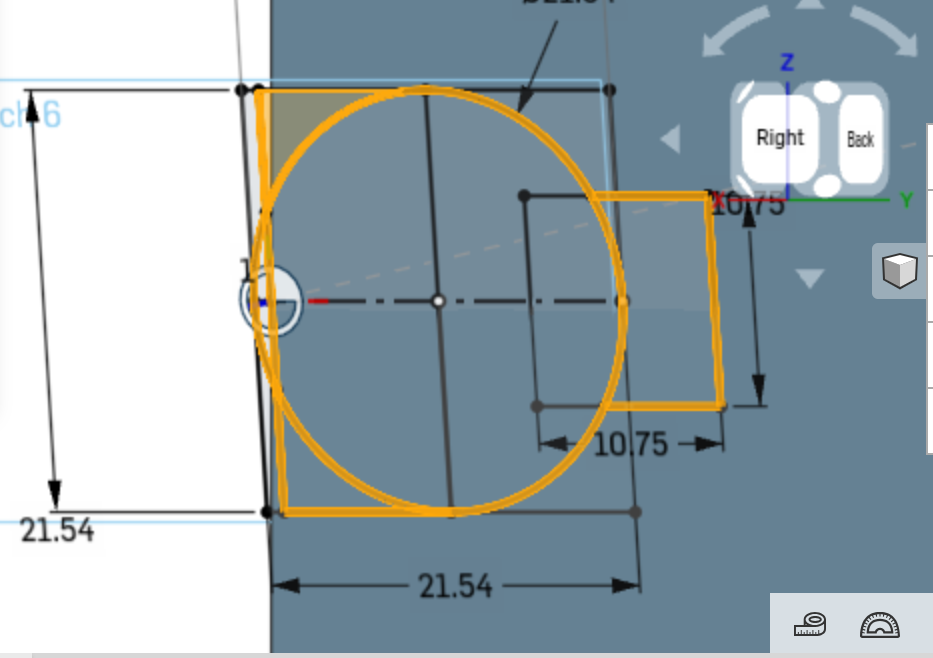
It seems like I would not want to select the outer part of the circle that is beyond the drawing, but it seems to appear eventually when I select the circular part. I don’t know if it makes any difference though. Right now I have to do some other things.
Thanks
I see you added a mate connecter. I was planning on using mate connectors, but thought I should add them after I got the shape I wanted to sweep drawn first.
In drawing the lines I used the center rectangle tool. I had been trying to use one corner rectangle or two. I thought about the center rectangle method, but didn’t use it because it would extend to areas I didn’t want it. I suppose that goes back to pencil drawing where I’d have to erase it. That’s not really an issue with this.
Here is the shape I was after. It will be the same shape, but a little bit different dimensions on the other side. There is a taper in the rounded part. The rectangular groove will be the same size, but will be at different depths because of the tapering round parts.
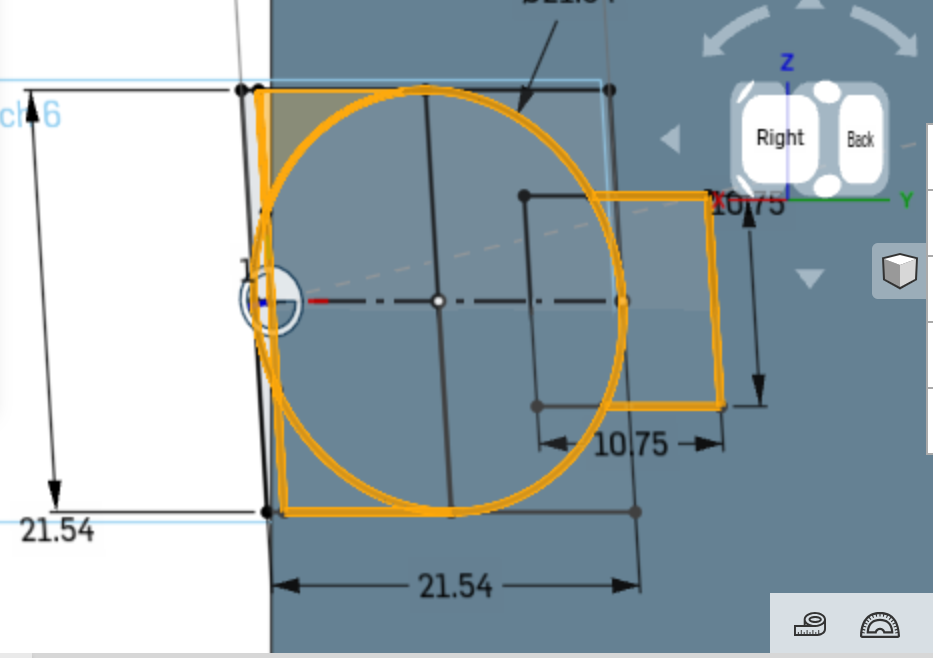
It seems like I would not want to select the outer part of the circle that is beyond the drawing, but it seems to appear eventually when I select the circular part. I don’t know if it makes any difference though. Right now I have to do some other things.
0 -
You can use either the plane or the mate connector. Sometimes one makes more sense than the other. Just be careful that you're not overlapping lines too much. Use the trim tool to remove parts you don't need. And be sure to use the equal constraint to get square rectangles. That way you don't have to dimension both sides.
0 -
equal constraint to get square rectangles
So the dimensions on either side will be a little different, but there is a way to set the constraints the same on either side and that way don't have to include all the dimensions, but seeing as they aren't the same size would have to include some.
I'll have to look into the trim tool.
0