Welcome to the Onshape forum! Ask questions and join in the discussions about everything Onshape.
First time visiting? Here are some places to start:- Looking for a certain topic? Check out the categories filter or use Search (upper right).
- Need support? Ask a question to our Community Support category.
- Please submit support tickets for bugs but you can request improvements in the Product Feedback category.
- Be respectful, on topic and if you see a problem, Flag it.
If you would like to contact our Community Manager personally, feel free to send a private message or an email.
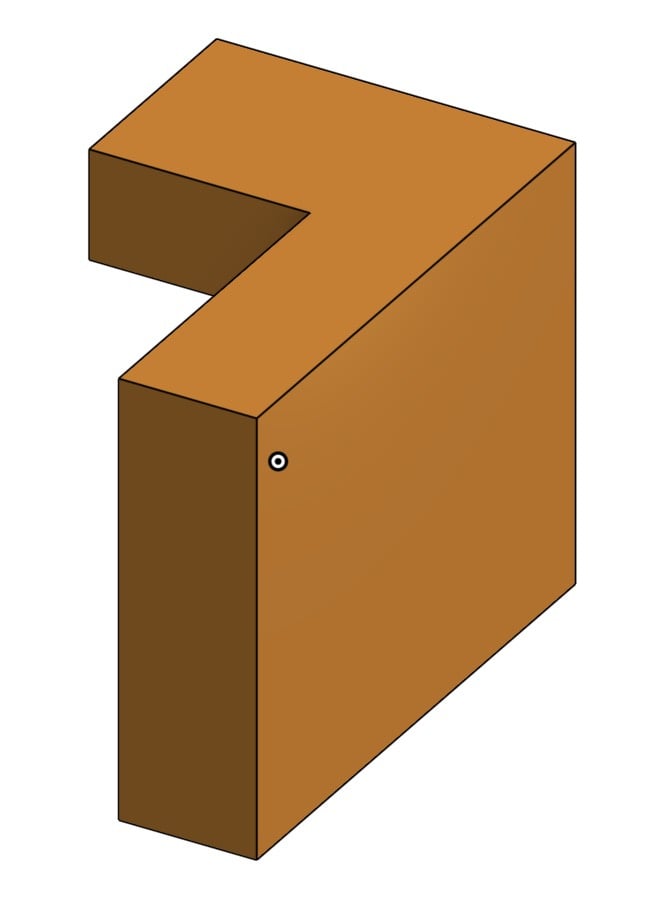
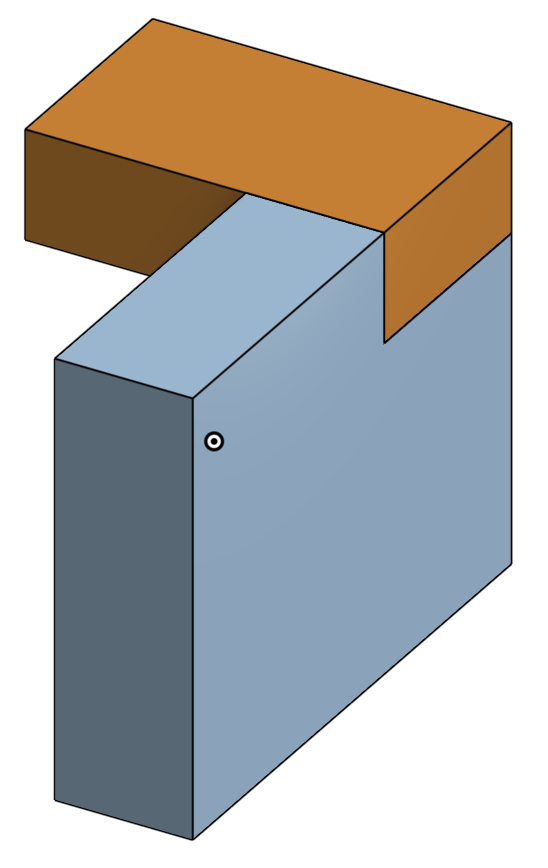
How to quickly seperate parts by edges or projection?

Before | After |
|---|---|
|
|
I'm don't know how I can describe the question properly.
But here is a demo project file, I tried 3 different way to achive the result,
None of them are simple enough.
Imagine I have a complicated 3D printing project contains many seperating operations in a single model,
it will be a nightmare.
Is there a way to do this in a single step or any related FeatureScript that can help with this in consider of efficiency?
Answers
-
Here's my document: https://cad.onshape.com/documents/e5b48c28c0b86a51bd2781c3/w/2339fd5dcd8e1903f420cbe8/e/eada49d37ae638a0e2e9b45f
If you have to start with a preexisting part, then I'd say that your method 3 is closest to the best. I slightly modified your method in my solution 1 to not need a third sketch (you can use the preexisting lines from sketch 2), but AFAIK that's as simple as it gets. If you don't have to start with a premade part, you can make it way simpler by using solution 2. I started with 1 sketch that basically combined your 2 sketches in the example part, and did 2 separate extrudes on each "region" to make 2 new parts. Just make sure you have extrude set to "new" if you use this method so both parts are separate! I get that this is only an example part, but it falls under many of the same strategies used in other multi-part studios. I'd check out any of the multi-part studio videos or advanced part studio videos on the onshape learning center for more help: https://learn.onshape.com/
Depending on your real-world use case, it also might be better to make most of the parts in separate part studios and then combine them in an assembly. This allows a lot more freedom to make parts as efficiently as possible and combine them in all sorts of different ways. Can I ask what kind of large-scale print this is for? If you have any documents already made and are willing to share, we could work through different ways to approach your workflow.0 -
@Dietrich_Joe Thank you so much and sorry for the lack of details.
I will share more about my situation.
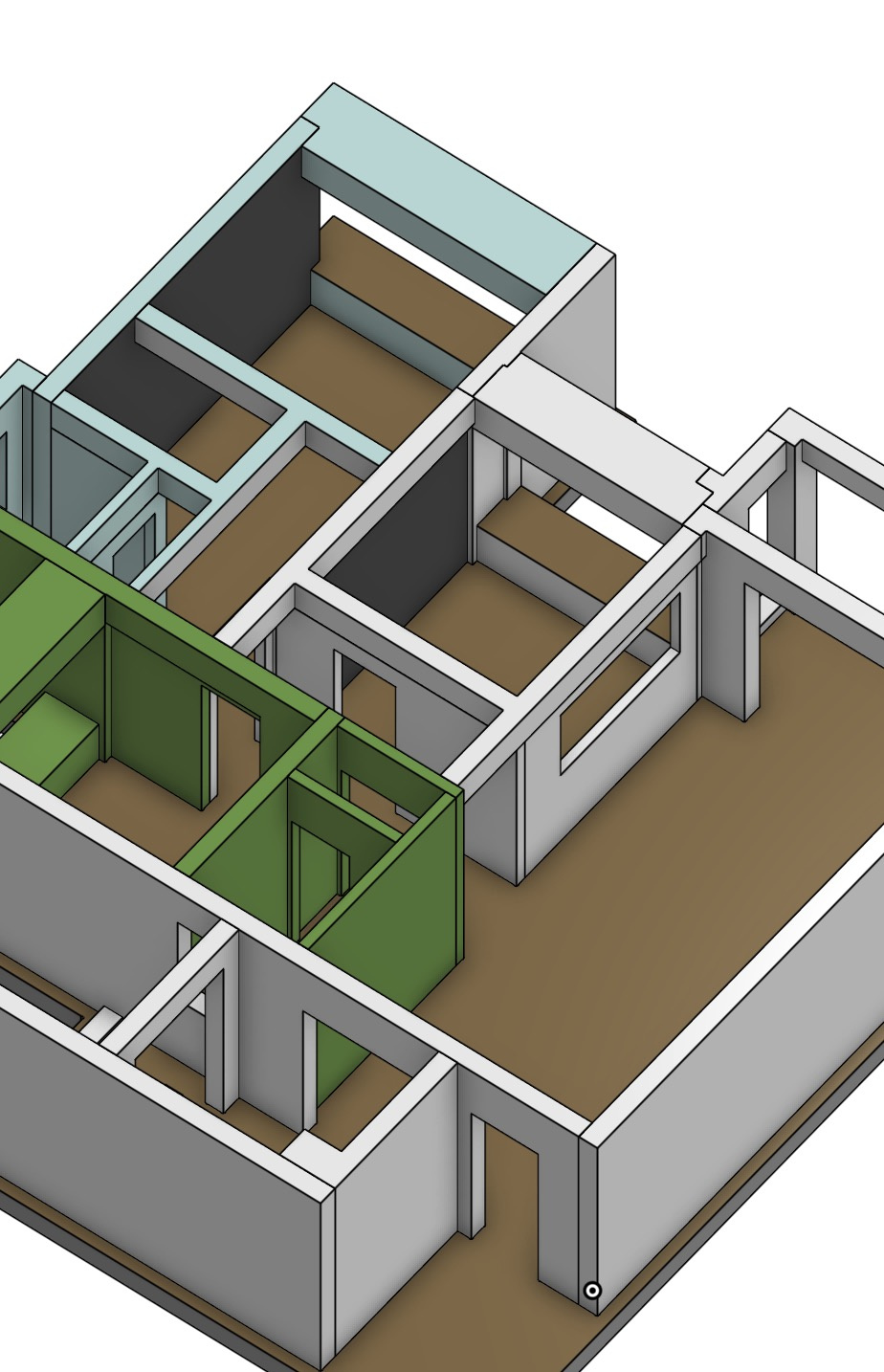
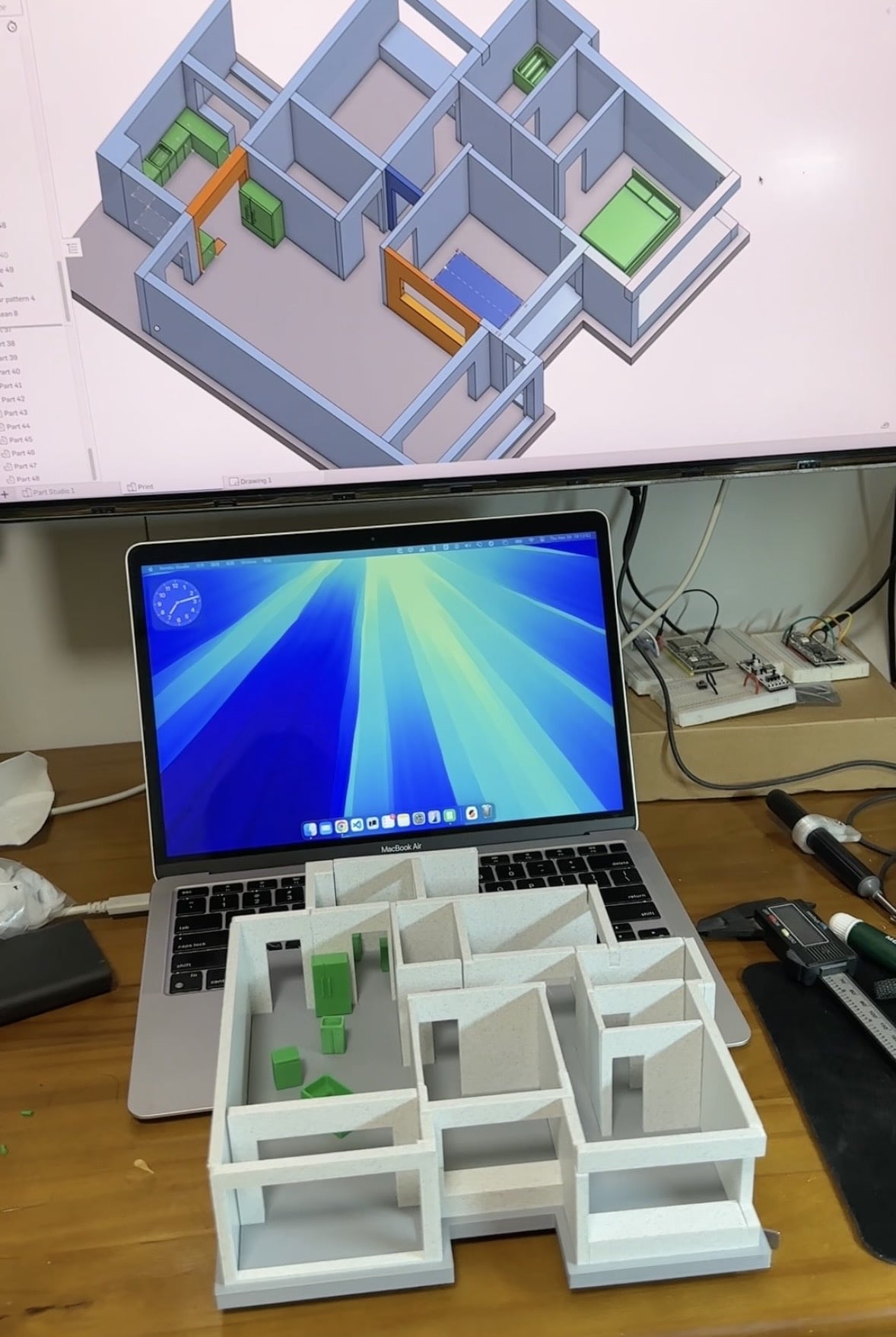
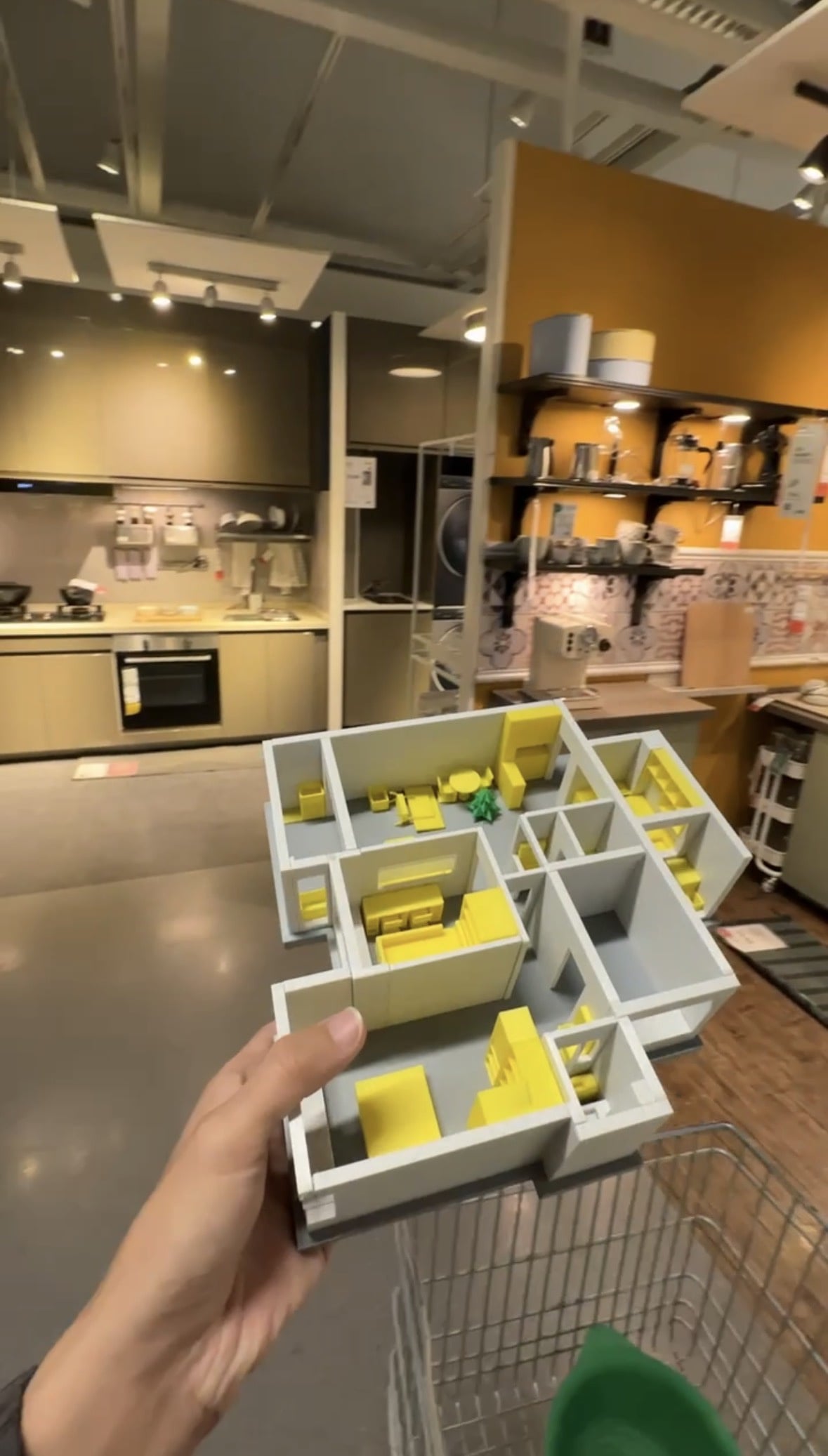
I designed my own apartment using OnShape. To improve communication with the construction workers I hired, I realized having physical 3D-printed models on hand would be extremely helpful and it actually did! However, this project was not originally intended for 3D printing, so it won't be possible (and should not) be designed splitting in the first place, it also cannot be printed directly as-is. I therefore need to create multiple versions by splitting pre-existing designed parts for different applications and construction topics. One other benefit is that most modification to the base design should affect the split components—usually their lengths and dimensions.
0 -
Wow, this is a really cool use of the program! I can see why your situation is so specific to splitting now. You've clearly already put a lot of time into getting everything made. The good news is getting a model this detailed split into so many parts is always going to be a time-consuming task, so you probably weren't wasting time doing it manually. If you were to do something similar in the future, I would also look into how your 3D printing slicer supports splitting the model, I believe all the major names have some ability to split a print.
If you're still interested in how the whole process could be faster, here's what I would have done:- Divide the onshape model into segments that can fit on your print bed (if necessary)
- Make one giant horizontal split partway up the wall, dividing all segments into an upper and lower section
- Print all lower sections
- Print all upper sections upside down so they don't have any overhangs from the doorways
- Attach all upper and lower sections, then attach all large segments
Obviously this isn't the only best way to do this, and there are plenty of other specific advantages to use your splitting method. Still, I hope this was helpful!
0 -
Another workflow that might be worth exploring is using the "intersect" option
- Create a copy of your part using transform/copy in place
- Extrude a block that that overlaps the parts of your model you want to split off and use "intersect". You can also build that shape in multiple features and use intersect within the Boolean feature.
- This can make it possible to create multiple new parts in one go
0