Welcome to the Onshape forum! Ask questions and join in the discussions about everything Onshape.
First time visiting? Here are some places to start:- Looking for a certain topic? Check out the categories filter or use Search (upper right).
- Need support? Ask a question to our Community Support category.
- Please submit support tickets for bugs but you can request improvements in the Product Feedback category.
- Be respectful, on topic and if you see a problem, Flag it.
If you would like to contact our Community Manager personally, feel free to send a private message or an email.
Transform feature won't work on my sketch

Hi, making a part.. a ring with 3 slits along the edge..
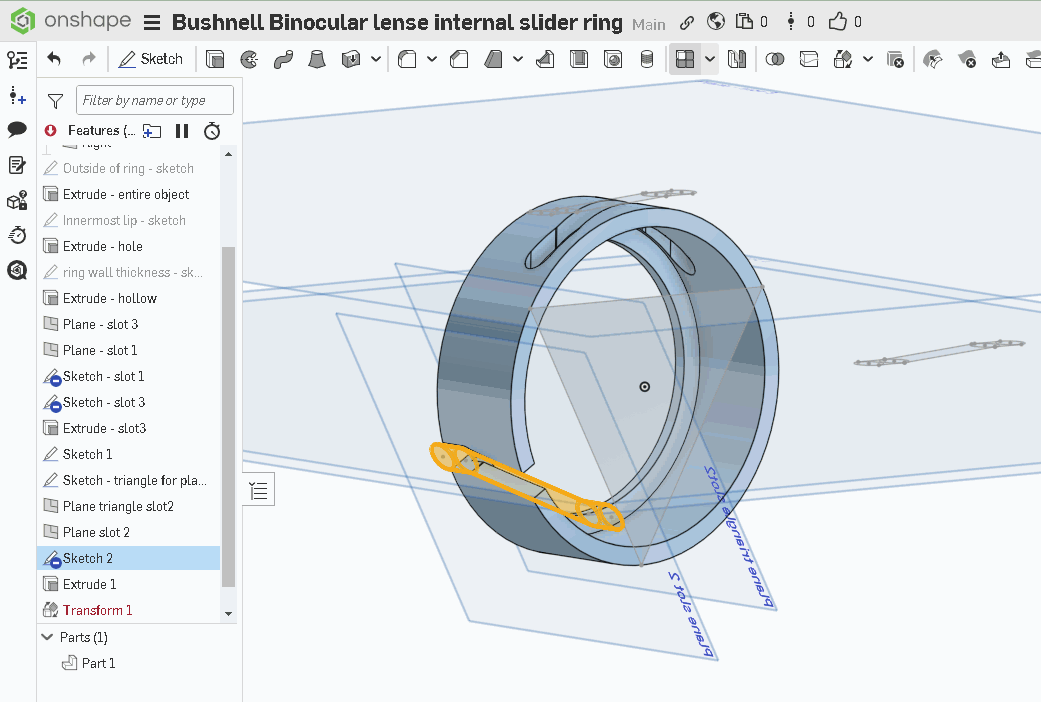
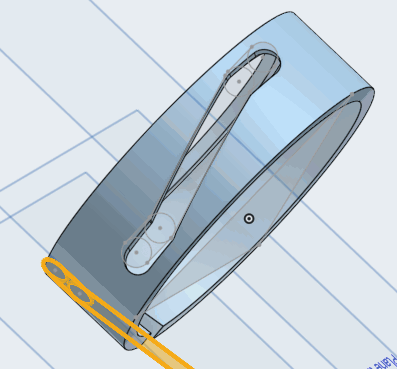
I managed to make 1 slit in the correct position (see top slit in the diagrams)
copied and pasted the first slit sketch onto another plane which touches the surface where I want it.. but I can't get it to transform and allow me to rotate/move it lengthwise.. like the first.
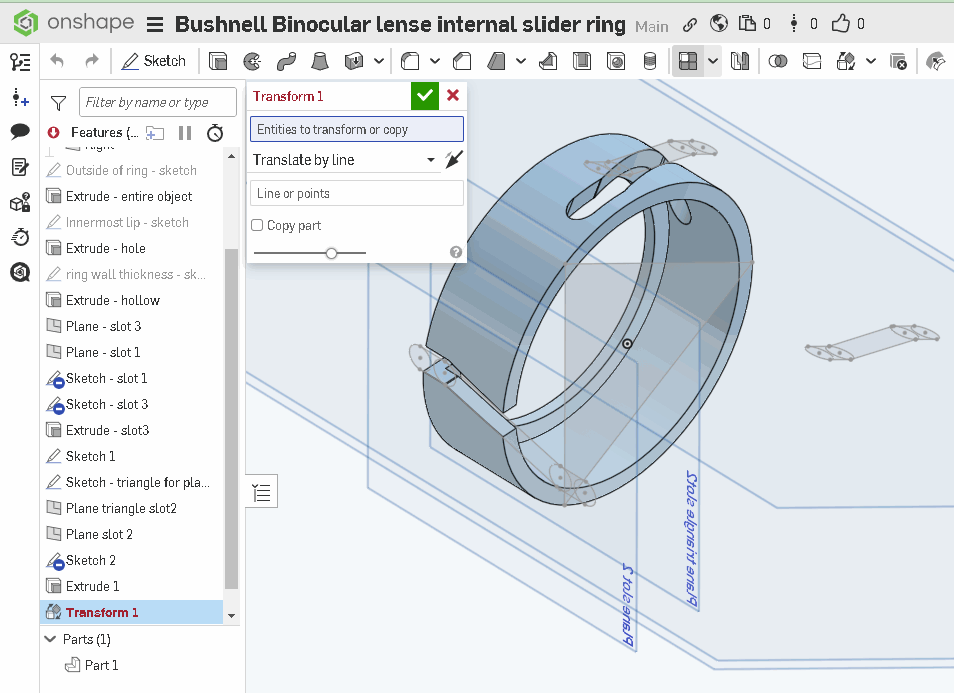
is this a bug? it should be straight forward, but it refuses to allow me to select sketch2 and transform.
tried it whilst edited, tried transform and selecting sketch2, tried selecting sketch2 lines.. nope..
am I doing something wrong? is it a bug? How can I achieve the result I require? (I need 3 slits evenly spaced around this ring)
Can you 'convert' a sketch into a separate part maybe.. and apply/transform that?
thoughts?
AJ
Best Answer
-
"transform sketch" is to move/rotate/scale lines within an "existing" sketch on the same sketch plane. You can't move an entire sketch "feature". You must first be inside of the sketch and then you can transform any or all lines within it by selecting them with a mouse window click, and then pressing the sketch transform button. Note there is a "sketch transform" within the sketch toolbar, and a "transform" for solid parts in the normal toolbar. They are different. Here is the help on it (it looks like the video has a glitch and the screen cutoff the title bar): https://cad.onshape.com/help/Content/Sketch/sketch_transform.htm?Highlight=transform%20sketch
0
Answers
-
Transform is the wrong tool for this job. Use circular pattern instead. Pattern the solid feature, not the sketch.
0 -
" copied and pasted the first slit sketch onto another plane which touches the surface where I want it.. but I can't get it to transform and allow me to rotate/move it lengthwise.. like the first."
If you are just trying move the sketch geometry, do it in the sketch - using the triad manipulator, or dimensions, or drag and drop, or a combination of all of the above.
If you are going for an evenly spaced arrangement - use the advice given above by nick_papageorge_dayjob
Others may have more advice - cheers.
0 -
will research both suggestions, thanks
AJ
0 -
hmm, I can't find any tool called 'triad manipulator' on the toolbar… search doesn't find it either.
it won't let me drag /drop it either…. wether I have the sketch in edit mode or not.
shouldn't be this hard to simply rotate and re-position an existing sketch on it's assigned plane. is onshape capable or not capable of doing this?
AJ
0 -
To be clear.. all I want to do is rotate and re-position an existing sketch somewhere else on it's assigned plane.
not sure how I got the first one to work.. it's in the correct position just how I need it..
Could the fact that slit2 and slit3 are 'copy and pastes; of that first one (sketch slit1) be the issue?
step by step - how do i rotate and re-position a sketch on it's plane?
AJ
0 -
"transform sketch" is to move/rotate/scale lines within an "existing" sketch on the same sketch plane. You can't move an entire sketch "feature". You must first be inside of the sketch and then you can transform any or all lines within it by selecting them with a mouse window click, and then pressing the sketch transform button. Note there is a "sketch transform" within the sketch toolbar, and a "transform" for solid parts in the normal toolbar. They are different. Here is the help on it (it looks like the video has a glitch and the screen cutoff the title bar): https://cad.onshape.com/help/Content/Sketch/sketch_transform.htm?Highlight=transform%20sketch
0 -
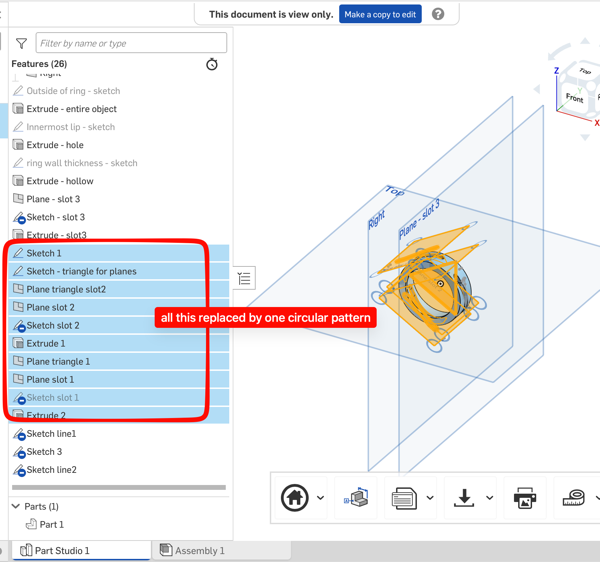
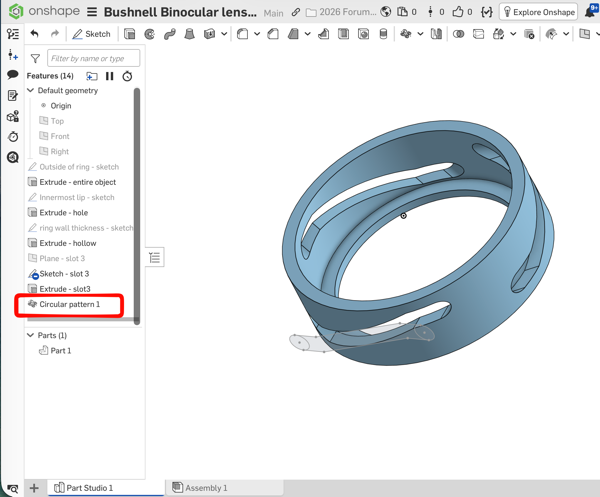
You really went about the whole design the most convoluted way possible. Here is how you should have done it. One single circular pattern would replace all planes you made, sketches you made, sketch transforms, extrudes, etc. Plus the way you have it now, if you need to adjust one of the cuts, the other two won't adjust with it. Its not good practice to do it that way.
 0
0 -
Sorry for the late reply, and the confusion. "Triad manipulator", may be a throw back to other cad systems that I've worked with . Nick is probably right with the "transform sketch" - try looking that up.
Here is a brief explanation. While in a sketch, highlight some existing geometry - then look for the triad symbol (couple of arrows, a circle, and a square) that should appear attached to that geometry.
click and drag those arrows, square, and circle to move and rotate the highlighted geometry. Play around to see what each symbol does - works like the transform tool, if you understand that.
I had a hard time finding this in the help myself, probably because I didn't know the correct name. But it's fairly intuitive with a little experimentation.
Good luck
0 -
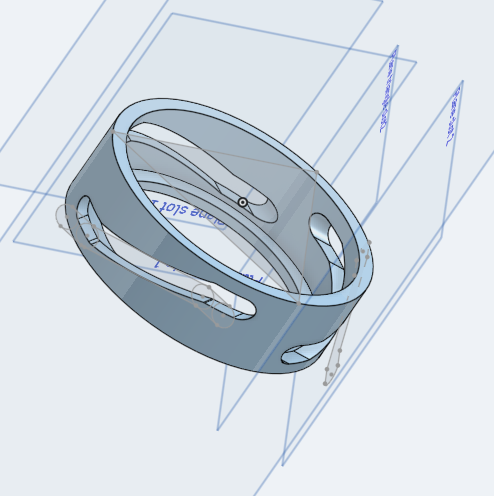
Hi thanks for the tips guys.. got it working.
FYI.. transform would not work at all on the sketch when it had circles in it??
I removed the circles and replaced the ends with curves.. once I did that, the transform tool worked just like it says it should! hmm..
I needed to flip the slots, the mirror function did this, then just delete the original sketch lines, leaving only the flipped image.. transform to position it!.
appreciate the tips..
AJ
 0
0 -
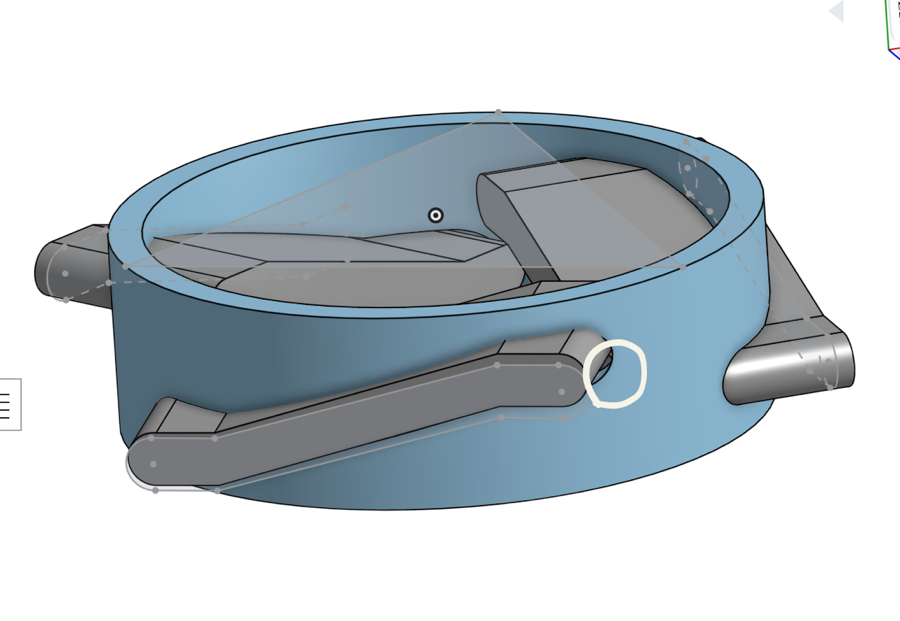
@anthony_johnston295 Did you intend for the 3 slots to be the same and equally spaced? It's my understanding that is how camera lenses work, but I may be wrong about that. I know my Canon has a witness mark to line up the lens before rotating it… Your 3 slots are NOT equally spaced if that's what you intended. See the picture:
 0
0
