Welcome to the Onshape forum! Ask questions and join in the discussions about everything Onshape.
First time visiting? Here are some places to start:- Looking for a certain topic? Check out the categories filter or use Search (upper right).
- Need support? Ask a question to our Community Support category.
- Please submit support tickets for bugs but you can request improvements in the Product Feedback category.
- Be respectful, on topic and if you see a problem, Flag it.
If you would like to contact our Community Manager personally, feel free to send a private message or an email.
Constrain a DXF
 patrik_söderholm
Member Posts: 3 ✭
patrik_söderholm
Member Posts: 3 ✭
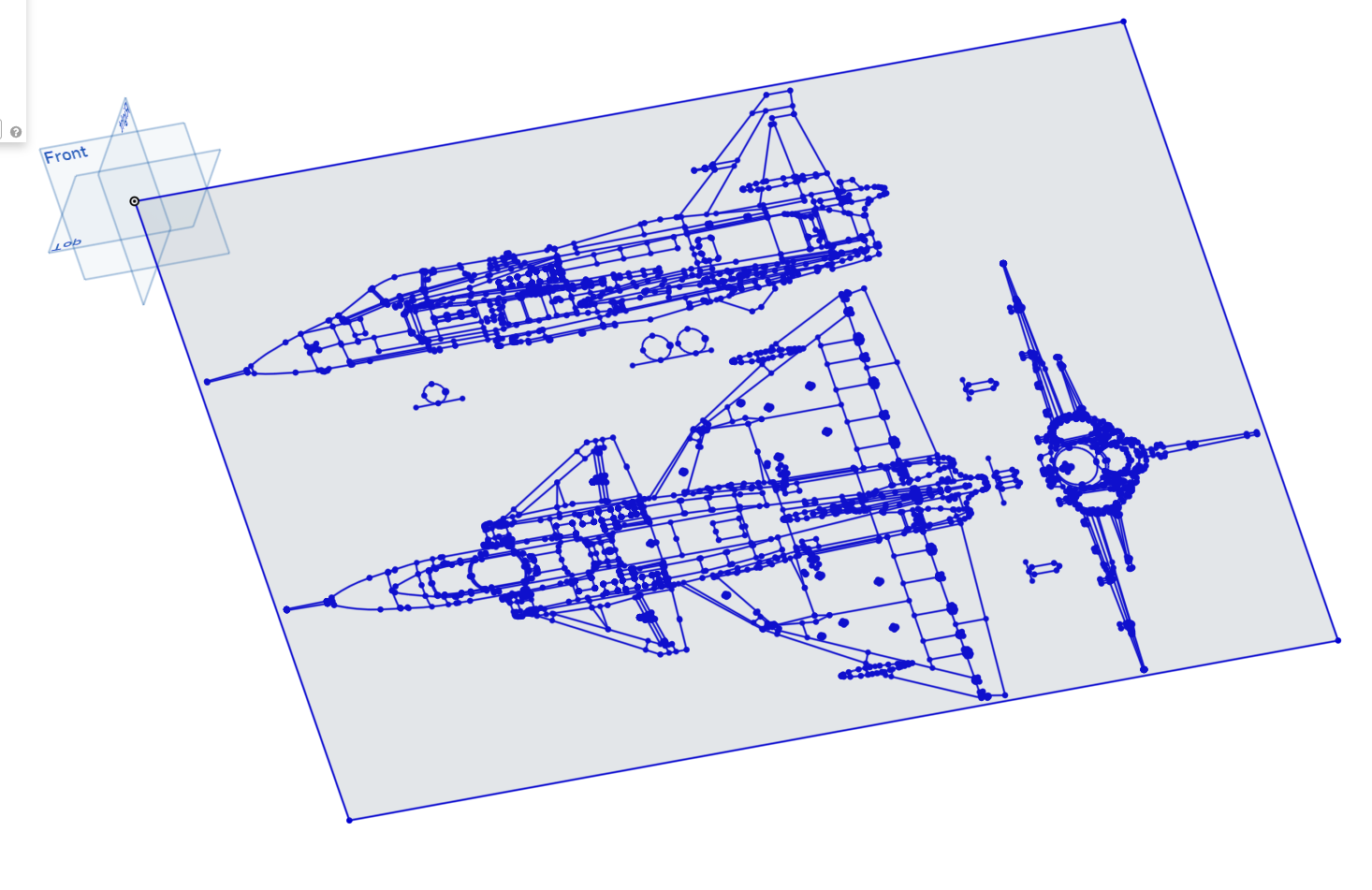
I've imported a DXF; a three-view of an airplane. To be able to draw a geometry i three dimensions i need to freeze the DXF in size and constrain all elements within it so that I can use the same DXF on all three planes and maintain correlation between the views.
Is there a way to do this? ChatGPT suggested making a block of all entities in the sketch but that option does not exist, what I can find.
Nay suggestion is welcome.
Cheers
Patrik
Tagged:
0
Answers
The first dimension you add to the DXF will scale the entire sketch. So if you dimension the line of the top of the box, and set that dimension equally in all 3 planes, it will be the same scale. You can then transform all of the sketch entities around as needed. Also helpful is the "Fix" tool, which will simply fix a sketch entity (or bulk select them all!)
You can't really constrain it without sending a lot of time on something like that.
Since you won't be editing the sketch, you just want to line them up:
You can create a sketch on a plane and insert this in, delete the two other projections and the border.
Now create ONE known dimension. By editing this dimension, it will scale everything in the sketch equally. As soon as there is a second dimension this will only lengthen the object that the dimension is connected to.
Then you can window select everything and use the transform tool to move the first view over the origin as needed:
Then close the sketch, the sketch will remain locked until you edit it again.
Now create a view on the other planes and do the same dimension trick as before to scale it, then window select & transform each projection where it belongs relative to the first sketch.
once all three views are where you want them you can create new sketches that reference these. It's as close to a "block" as you can get in Onshape.
When using the transform tool move the origin of the manipulator over the point you want to reference, then use the arrows or boxes on the manipulator to drag the selected geometry. Then when the origin point of the manipulator is close to something you want to attach to, it will snap to that point.
here is a gif showing that workflow with some random sketch clutter that isn't constrained.
You can do this same workflow with images too which I show the result of in the last part of the gif